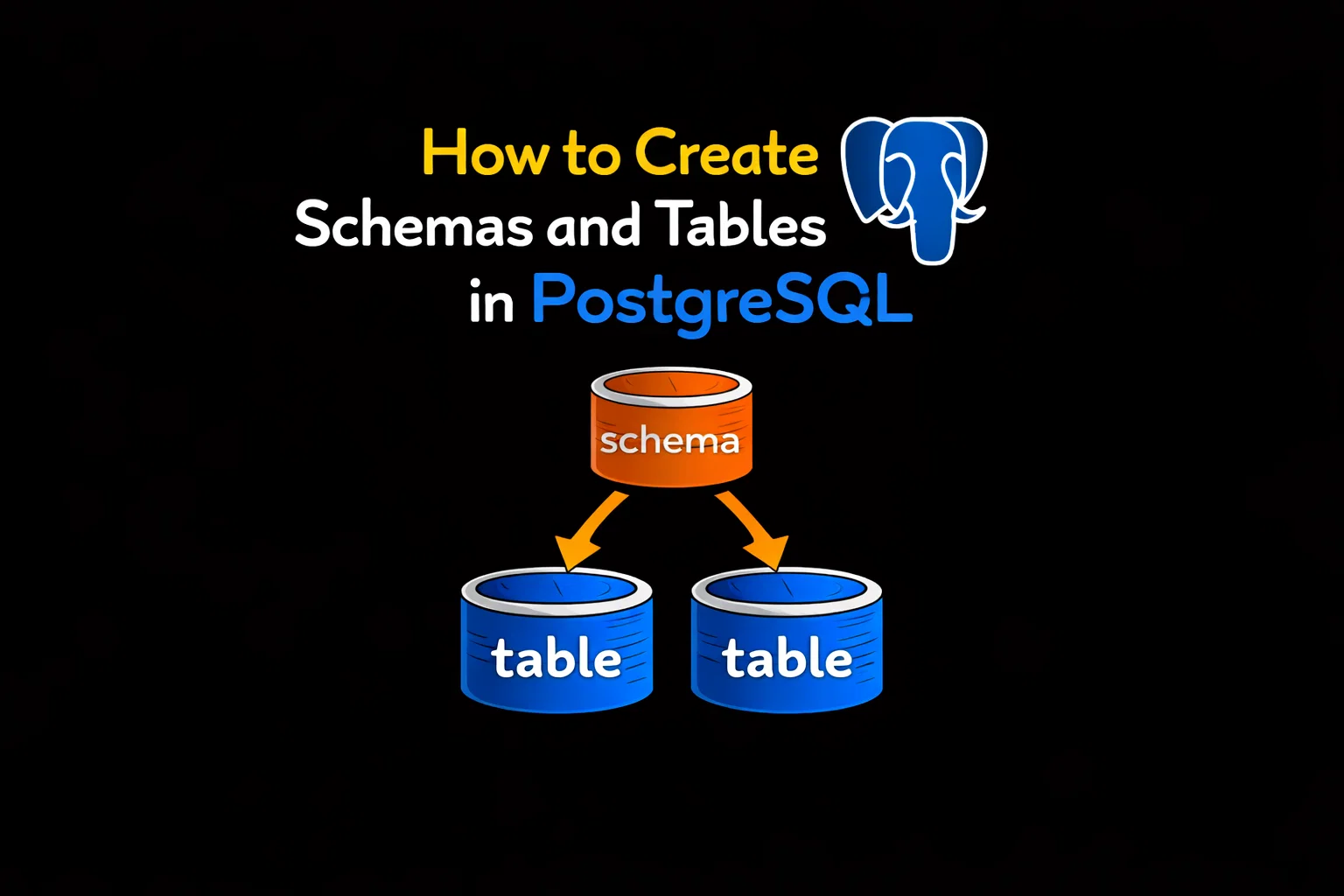
This guide walks you through the complete process of creating schemas and tables in PostgreSQL, including basic creation, associated usage, and permission configuration.
We’ll follow industry best practices to help you avoid common pitfalls and manage database objects efficiently.
Table of Contents
First: Clarify Core Concepts
- Schema: Acts like a “folder” within a database. It organizes database objects (e.g., tables, views) to avoid naming conflicts and serves as a key tool for permission isolation. PostgreSQL’s default schema is
public. - Table: Must belong to a schema. If you don’t explicitly specify a schema, the table will be created in the default
publicschema by default.
Step 1: Create a Schema
1. Basic Creation Syntax
-- Basic syntax: CREATE SCHEMA schema_name;
CREATE SCHEMA IF NOT EXISTS my_schema; -- Add IF NOT EXISTS to avoid errors from duplicate creation
Key notes:
IF NOT EXISTS: Optional but recommended. Prevents an error if a schema with the same name already exists.- Permissions required: You need the
CREATEprivilege on the current database (superusers have this by default; regular users must be granted it explicitly).
2. Advanced Creation (Specify Owner)
-- Create a schema and assign an owner (e.g., make test_user the owner)
CREATE SCHEMA IF NOT EXISTS my_schema AUTHORIZATION test_user;
Effect: The specified user automatically gains full privileges on the schema, eliminating the need for additional authorization.
3. Verify Schema Creation
-- Method 1: psql shortcut (list all schemas in the current database)
\dn

-- Method 2: Query the system catalog
SELECT schema_name FROM information_schema.schemata WHERE schema_name = 'my_schema';
Step 2: Create a Table in a Schema
1. Basic Creation (Specify Schema)
-- Core syntax: CREATE TABLE schema_name.table_name (column_definitions);
CREATE TABLE IF NOT EXISTS my_schema.user_info (
    id SERIAL PRIMARY KEY,       -- Auto-incrementing primary key
    username VARCHAR(50) NOT NULL, -- Username (non-null constraint)
    email VARCHAR(100) UNIQUE,   -- Email (unique constraint)
    create_time TIMESTAMP DEFAULT CURRENT_TIMESTAMP -- Creation time (defaults to current timestamp)
);
Key notes:
- Always use the
schema_name.table_nameformat. Omitting the schema name will create the table in the defaultpublicschema. SERIAL: PostgreSQL’s auto-increment column type (equivalent toINT + sequence).IF NOT EXISTS: Recommended to avoid errors from duplicate table creation.
2. Switch Default Schema (Simplify Table Operations)
If you don’t want to type schema_name.table_name every time, set the default schema for your current session:
-- Set my_schema as the default schema for the current session (searched first)
SET search_path TO my_schema, public;

-- Now you can create tables without specifying the schema (created in my_schema by default)
CREATE TABLE IF NOT EXISTS product (
    product_id INT PRIMARY KEY,
    product_name VARCHAR(100) NOT NULL
);
search_path: Defines the order in which PostgreSQL searches for objects. Here, it prioritizes my_schema, then public.
3. Verify Table Creation
-- Method 1: psql shortcut (list tables in the specified schema)
\dt my_schema.*

-- Method 2: Query the system catalog
SELECT table_name
FROM information_schema.tables
WHERE table_schema = 'my_schema' AND table_name = 'user_info';
Critical Supplement: Grant Permissions for Schemas and Tables
By default, regular users have no access to newly created schemas or tables. You must explicitly grant permissions (example using test_user):
-- 1. Grant USAGE permission on the schema (required to access tables in the schema)
GRANT USAGE ON SCHEMA my_schema TO test_user;

-- 2. Grant CREATE permission on the schema (optional: allows the user to create tables in the schema)
GRANT CREATE ON SCHEMA my_schema TO test_user;

-- 3. Grant table operation permissions (assign based on needs, e.g., read-only or read-write)
-- Read-only permissions
GRANT SELECT ON ALL TABLES IN SCHEMA my_schema TO test_user;
-- Read-write permissions
GRANT SELECT, INSERT, UPDATE, DELETE ON ALL TABLES IN SCHEMA my_schema TO test_user;

-- 4. Grant default permissions for future tables (avoids missing permissions for new tables)
ALTER DEFAULT PRIVILEGES IN SCHEMA my_schema
GRANT SELECT, INSERT ON TABLES TO test_user;

-- 5. Grant sequence permissions for auto-increment columns (optional)
GRANT USAGE, SELECT ON ALL SEQUENCES IN SCHEMA my_schema TO test_user;
Troubleshooting Common Errors
When creating schemas or tables, you may encounter errors due to permission issues, object dependencies, or syntax mistakes. Below are solutions for the most frequent scenarios:
1. Permission Denied When Creating a Schema
-- Error message
ERROR:  permission denied to create schema
Causes & Solutions:
See also: Mastering the Linux Command Line — Your Complete Free Training Guide
- The current user lacks the
CREATEprivilege on the database. Grant the privilege as a superuser (e.g.,postgres):
-- Grant CREATE permission on the target database to the user
GRANT CREATE ON DATABASE your_database_name TO your_username;
2. Permission Denied When Creating a Table in a Schema
-- Error message
ERROR:  permission denied for schema my_schema
ERROR:  must be owner of schema my_schema
Causes & Solutions:
- Scenario 1: The user has no
USAGEorCREATEpermission on the schema. Grant the required permissions:
GRANT USAGE, CREATE ON SCHEMA my_schema TO your_username;
- Scenario 2: The user is not the schema owner and tries to perform owner-only operations (e.g., modifying schema attributes). Either change the schema owner or use the owner account:
-- Change schema owner to the user (run as superuser)
ALTER SCHEMA my_schema OWNER TO your_username;
3. Table Creation Fails Due to Missing Sequence Permissions (Auto-Increment Columns)
-- Error message (when inserting data into a table with SERIAL/BIGSERIAL)
ERROR:  permission denied for sequence user_info_id_seq
Cause: Auto-increment columns (SERIAL) rely on sequences, and the user lacks permission to access the sequence.
Solution: Grant sequence permissions explicitly:
GRANT USAGE, SELECT ON ALL SEQUENCES IN SCHEMA my_schema TO your_username;
-- Grant default permissions for future sequences
ALTER DEFAULT PRIVILEGES IN SCHEMA my_schema GRANT USAGE, SELECT ON SEQUENCES TO your_username;
4. Cannot Delete Schema (Dependency Error)
-- Error message
ERROR:  cannot drop schema my_schema because other objects depend on it
DETAIL:  table my_schema.user_info depends on schema my_schema
Cause: The schema contains objects (e.g., tables, views) that must be deleted first.
Solutions:
- Option 1: Manually delete all objects in the schema first, then delete the schema (safe but tedious):
DROP TABLE IF EXISTS my_schema.user_info;
DROP SCHEMA IF EXISTS my_schema;
- Option 2: Force delete the schema and all its dependencies (high-risk, use only if sure):
DROP SCHEMA IF EXISTS my_schema CASCADE;
5. Table Not Found (Incorrect Schema Search Path)
-- Error message (when querying a table without specifying the schema)
ERROR:  relation "user_info" does not exist
Cause: The table’s schema is not in the current session’s search_path, so PostgreSQL cannot find it.
Solutions:
- Option 1: Explicitly specify the schema when querying:
SELECT * FROM my_schema.user_info;- Option 2: Add the schema to the
search_path(persists for the current session):
SET search_path TO my_schema, public;
- Option 3: Permanently set the
search_pathfor the user (run as superuser):
ALTER USER your_username SET search_path TO my_schema, public;
Common Operations: Modify/Delete Schemas and Tables
1. Rename a Schema (Use Cautiously—No Dependencies Allowed)
ALTER SCHEMA my_schema RENAME TO new_schema;
2. Delete an Empty Schema (Must Delete Tables First)
-- First delete all tables in the schema
DROP TABLE IF EXISTS my_schema.user_info;
-- Then delete the schema
DROP SCHEMA IF EXISTS my_schema;

-- Force delete the schema and all contained objects (high-risk, use with caution)
DROP SCHEMA IF EXISTS my_schema CASCADE;
3. Delete a Table
DROP TABLE IF EXISTS my_schema.user_info;
Summary
- Create a schema with
CREATE SCHEMA IF NOT EXISTS schema_name; specifying an owner is recommended. - When creating a table, explicitly specify the schema using
schema_name.table_name, or simplify operations by settingsearch_path. - Regular users must be granted
USAGEpermission to access a schema, followed by table operation permissions as needed. - Follow the principle of “authorize first, use later” to avoid permission errors when users create or access objects.
By following this workflow, you can manage schemas and tables in PostgreSQL systematically, avoiding naming conflicts and precisely controlling user permissions.