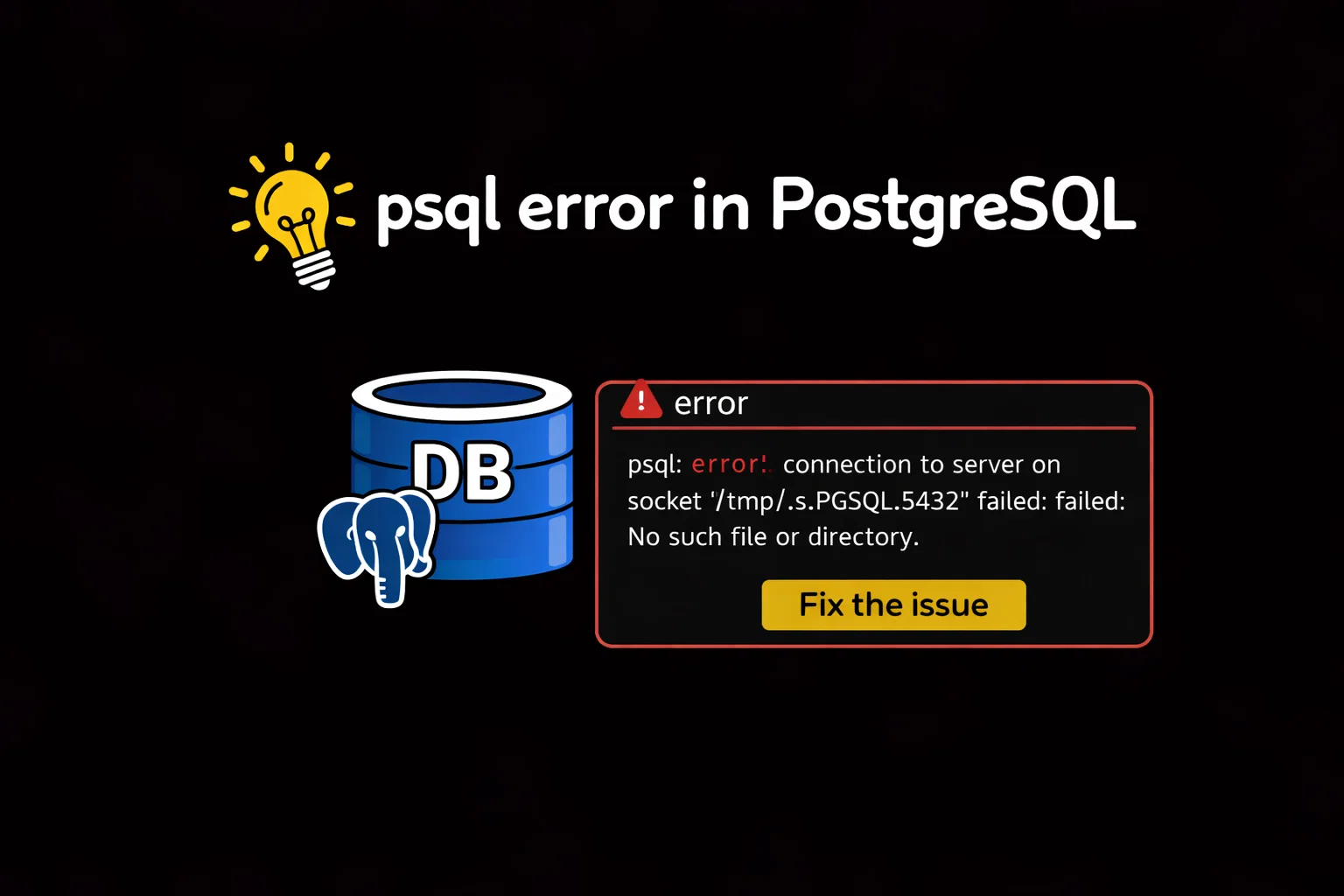
This is one of the most common and frustrating errors PostgreSQL users—especially beginners—encounter when trying to connect to a local PostgreSQL server.
In this comprehensive guide, you’ll learn exactly what causes this error, how to systematically diagnose it, and step-by-step solutions to get your PostgreSQL server back up and running.
Table of Contents
What This Error Actually Means
Before diving into fixes, let’s break down the error message to understand what’s happening:
psql: The PostgreSQL command-line client you’re using to connect./tmp/.s.PGSQL.5432: The Unix domain socket file PostgreSQL uses for local connections (5432 is the default PostgreSQL port).No such file or directory: The socket file the client is looking for doesn’t exist.- The follow-up question (“Is the server running locally…”) is PostgreSQL’s way of hinting at the most common root cause: the PostgreSQL server process isn’t active.
In short: Your psql client is trying to connect to a PostgreSQL server via a local socket that either doesn’t exist, is in the wrong location, or the server itself isn’t running.
Common Causes of the Error
The error can stem from 5 key issues (ordered by frequency):
- The PostgreSQL server is not running.
- The socket file is stored in a non-default location (not
/tmp). - Permissions prevent the client from accessing the socket file or
/tmpdirectory. - PostgreSQL is configured to use a non-default port (not 5432).
- System-level issues (e.g.,
/tmpdirectory was cleaned up, corrupted socket file).
Step-by-Step Troubleshooting & Solutions
We’ll start with the simplest (and most common) fixes and work our way to more complex scenarios. All commands include examples for major operating systems (Linux/macOS; Windows uses TCP/IP instead of Unix sockets, so this error is rare there).
Step 1: Verify if PostgreSQL Server Is Running
The #1 reason for this error is that the PostgreSQL daemon (process) isn’t active.
Check Server Status (Linux – systemd)
sudo systemctl status postgresql
- If the output shows
inactive (dead)orfailed, the server is not running. - If it shows
active (running), move to Step 2.
Check Server Status (macOS – Homebrew)
brew services list | grep postgresql
- Look for
postgresqlwith a status ofstarted(good) orstopped(bad).
Check Server Status (macOS – System Integrity Protection)
pg_ctl -D /usr/local/var/postgres status
Fix: Start the PostgreSQL Server
- Linux (systemd):
sudo systemctl start postgresql # Optional: Enable auto-start on boot sudo systemctl enable postgresql - macOS (Homebrew):
brew services start postgresql - macOS (Manual):
pg_ctl -D /usr/local/var/postgres start
Verify the Fix
Run your original psql command (e.g., psql -U postgres). If the error is gone, you’re done! If not, proceed.
Step 2: Check if the Socket File Exists (and Where)
If the server is running but the socket file is missing or in the wrong location, you’ll still get the error.
Find the Actual Socket File Location
PostgreSQL stores the socket path in its configuration. Run this to find it:
See also: Mastering the Linux Command Line — Your Complete Free Training Guide
# For Linux (Debian/Ubuntu)
sudo -u postgres psql -c "SHOW unix_socket_directories;"

# For macOS
psql -U postgres -c "SHOW unix_socket_directories;"
The output will look like:
 unix_socket_directories
--------------------------
 /tmp, /var/run/postgresql
(1 row)
This tells you where PostgreSQL is creating the socket file (e.g., /tmp or /var/run/postgresql).
Check if the Socket File Exists
Replace <socket_dir> with the path from the previous step:
ls -la <socket_dir>/.s.PGSQL.5432
- Example:
ls -la /tmp/.s.PGSQL.5432 - If you see
No such file or directory, skip to Step 3. - If the file exists but you still get the error, check permissions (Step 4).
Fix: Connect Using the Correct Socket Path
If the socket is in a non-default location (e.g., /var/run/postgresql), specify it when connecting:
# Replace <socket_dir> with the actual path (e.g., /var/run/postgresql)
psql -U postgres -h <socket_dir>
Or set the PGHOST environment variable to make this permanent:
# For bash/zsh (add to ~/.bashrc or ~/.zshrc to persist)
export PGHOST=/var/run/postgresql
Step 3: Fix Socket File Permissions
Even if the socket file exists, incorrect permissions (for the file or /tmp directory) will block access.
Check Permissions for the Socket File
ls -la /tmp/.s.PGSQL.5432
The output should look like this (note the permissions srwxrwxrwx):
srwxrwxrwx 1 postgres postgres 0 Jan 7 10:00 /tmp/.s.PGSQL.5432
s: Socket file flag (required).rwxrwxrwx: All users can read/write/execute (access) the socket.
Check Permissions for the /tmp Directory
ls -ld /tmp
The output should show:
drwxrwxrwt 10 root root 4096 Jan 7 10:00 /tmp
- Critical: The
t(sticky bit) andrwxrwxrwtpermissions ensure/tmpis accessible to all users.
Fix Permissions
- Fix /tmp directory permissions:
sudo chmod 1777 /tmp(1777 = sticky bit + read/write/execute for all users—standard for/tmp.) - Restart PostgreSQL to recreate the socket file:
# Linux sudo systemctl restart postgresql # macOS (Homebrew) brew services restart postgresql
Step 4: Check for Non-Default Port
If PostgreSQL is configured to use a port other than 5432 (e.g., 5433), the socket file will be named .s.PGSQL.<port> (e.g., .s.PGSQL.5433), and psql will look for the wrong file by default.
Find the PostgreSQL Port
# For Linux
sudo -u postgres psql -c "SHOW port;"

# For macOS
psql -U postgres -c "SHOW port;"
If the output is not 5432 (e.g., 5433), you need to specify the port when connecting:
Fix: Connect with the Correct Port
# Replace 5433 with your actual port
psql -U postgres -p 5433
Or set the PGPORT environment variable:
# Persist by adding to ~/.bashrc or ~/.zshrc
export PGPORT=5433
Step 5: Fix System-Level Issues (Rare)
In rare cases, the /tmp directory is being cleaned up by the system (e.g., via tmpwatch on Linux or automatic cleanup on macOS) while PostgreSQL is running, deleting the socket file.
Fix: Use a Persistent Socket Directory
- Edit PostgreSQL’s configuration file (
postgresql.conf):- Linux:
/etc/postgresql/<version>/main/postgresql.conf - macOS (Homebrew):
/usr/local/var/postgres/postgresql.conf
- Linux:
- Find the
unix_socket_directoriessetting and change it to a directory that’s not cleaned up (e.g.,/var/run/postgresql):unix_socket_directories = '/var/run/postgresql' # Replace /tmp with this - Create the directory (if it doesn’t exist) and set permissions:
sudo mkdir -p /var/run/postgresql sudo chown postgres:postgres /var/run/postgresql sudo chmod 775 /var/run/postgresql - Restart PostgreSQL:
# Linux sudo systemctl restart postgresql # macOS brew services restart postgresql - Connect using the new socket path:
psql -U postgres -h /var/run/postgresql
Prevention Tips to Avoid This Error
- Ensure PostgreSQL starts on boot: Use
systemctl enable postgresql(Linux) orbrew services start postgresql(macOS) to avoid the server being offline after a reboot. - Avoid manual cleanup of /tmp: Never delete files in
/tmpwhile PostgreSQL is running (system tools liketmpwatchare safe if configured correctly). - Document non-default settings: If you change the port or socket directory, add notes to your setup docs (or set
PGHOST/PGPORTin your shell profile). - Monitor PostgreSQL status: Use tools like
pg_toporsystemdtimers to alert you if the server stops unexpectedly.
Summary
The “No such file or directory” error for the PostgreSQL socket file almost always boils down to a few fixable issues:
- Most common: The PostgreSQL server is not running—start it with
systemctl start postgresql(Linux) orbrew services start postgresql(macOS). - Second most common: The socket file is in a non-default location—use
SHOW unix_socket_directories;to find it and connect withh <socket_dir>. - Permissions: Ensure
/tmphas1777permissions and the socket file is accessible to your user. - Non-default port: Specify the port with
p <port>if PostgreSQL isn’t using 5432.
By following the step-by-step troubleshooting process, you’ll resolve this error quickly—even as a PostgreSQL beginner. If none of these fixes work, check PostgreSQL’s log files (Linux: /var/log/postgresql/; macOS: /usr/local/var/postgres/log/) for more specific errors (e.g., corrupted data directory, misconfigured postgresql.conf).