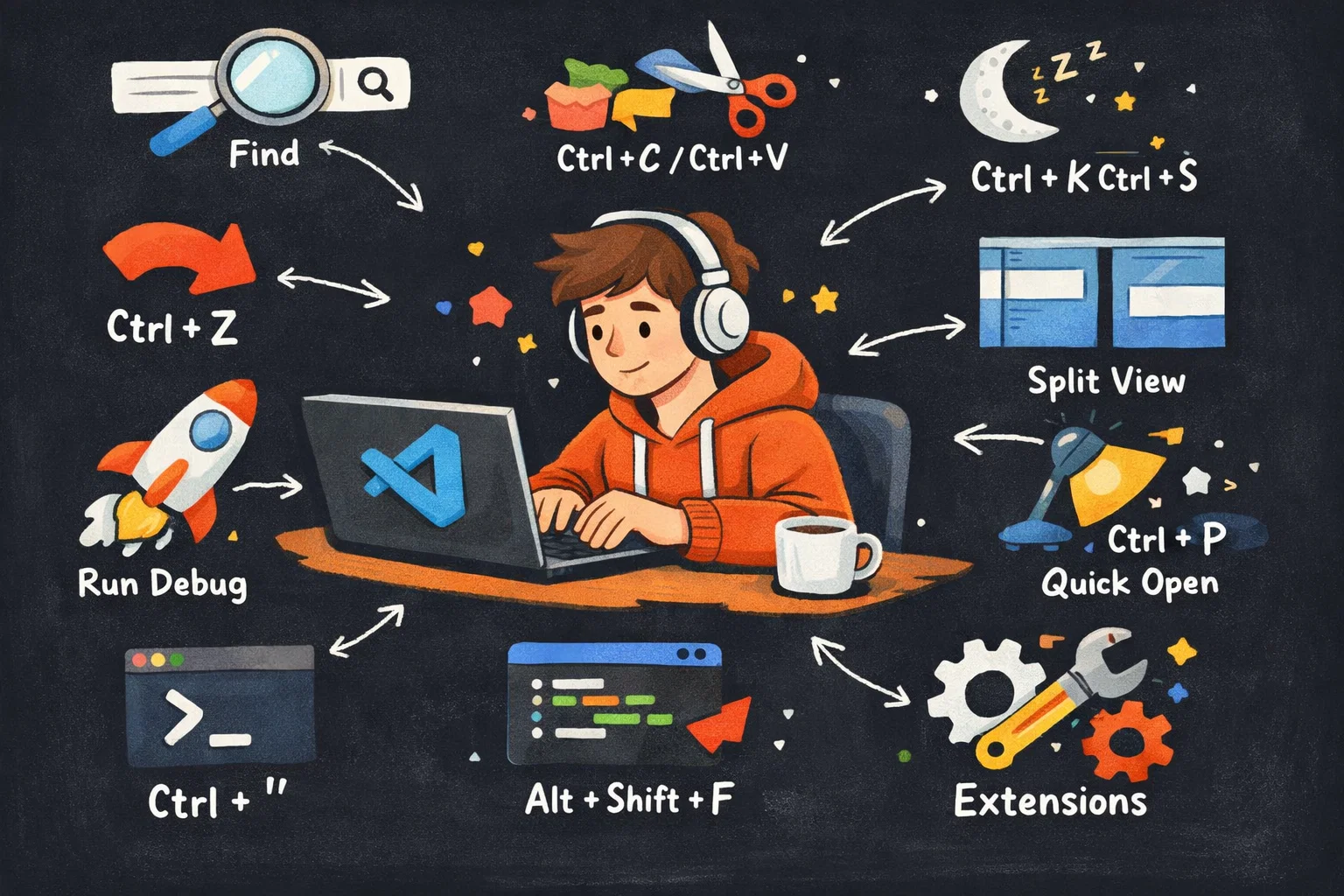
Visual Studio Code (VS Code) is one of the most popular code editors due to its lightweight design, extensibility, and robust feature set—keyboard shortcuts are its superpower for boosting coding efficiency.
This guide covers the most essential, frequently used shortcuts for Windows/Linux and macOS, organized by use case (basic operations, editing, navigation, etc.), plus tips for customizing shortcuts to fit your workflow.
Table of Contents
Prerequisites
- VS Code installed (any version, but latest stable recommended).
- Note: Shortcuts marked with
Win/Linuxapply to Windows 10/11 and Linux (Ubuntu, Fedora, etc.);macOSapplies to macOS Monterey/Ventura/Sonoma. - To view all built-in shortcuts: Press
Ctrl+K Ctrl+S(Win/Linux) orCmd+K Cmd+S(macOS) to open the Keyboard Shortcuts panel (searchable and filterable).
1. Basic Editor Operations (Foundational Shortcuts)
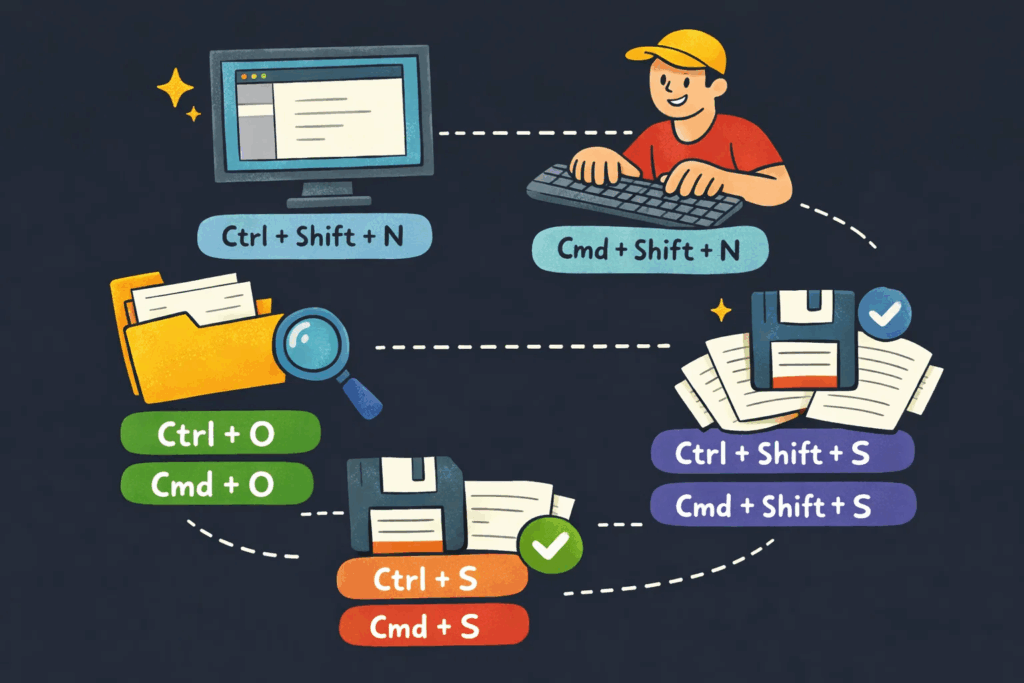
These shortcuts handle core editor tasks (file management, window control) and are used daily by all developers.
| Action | Win/Linux | macOS |
|---|---|---|
| Open VS Code Command Palette (most powerful shortcut!) | Ctrl+Shift+P / F1 | Cmd+Shift+P / F1 |
| New file | Ctrl+N | Cmd+N |
| New window | Ctrl+Shift+N | Cmd+Shift+N |
| Open file/folder | Ctrl+O | Cmd+O |
| Save file | Ctrl+S | Cmd+S |
| Save all files | Ctrl+Shift+S | Cmd+Shift+S |
| Close active tab | Ctrl+W | Cmd+W |
| Close all tabs | Ctrl+K Ctrl+W | Cmd+K Cmd+W |
| Reopen closed tab | Ctrl+Shift+T | Cmd+Shift+T |
| Rename active file | F2 | F2 |
| Delete active file | Delete (in Explorer) | Delete (in Explorer) |
| Reload window (fix glitches/extension issues) | Ctrl+Shift+P → type “Reload Window” | Cmd+Shift+P → type “Reload Window” |
| Zoom in/out | Ctrl++ / Ctrl+- | Cmd++ / Cmd+- |
| Reset zoom | Ctrl+0 | Cmd+0 |
Key Notes:
- The Command Palette (
Ctrl+Shift+P/Cmd+Shift+P) is your “one-stop shop”—you can run any VS Code command (e.g., “Format Document”, “Install Extension”) without memorizing shortcuts. Ctrl+K(Win/Linux) /Cmd+K(macOS) is a “prefix key”—press it, release, then press the second key (e.g.,Ctrl+K Ctrl+W= close all tabs).
2. Code Editing Shortcuts (Boost Productivity)
These shortcuts streamline writing/modifying code (indentation, selection, multi-cursor, etc.).
2.1 Text Selection & Manipulation
| Action | Win/Linux | macOS |
|---|---|---|
| Select all text | Ctrl+A | Cmd+A |
| Select current line | Ctrl+L | Cmd+L |
| Select word (repeat to expand) | Ctrl+D | Cmd+D |
| Select all occurrences of selected word | Ctrl+Shift+L | Cmd+Shift+L |
| Expand selection (to bracket/function) | Shift+Alt+Right | Shift+Option+Right |
| Shrink selection | Shift+Alt+Left | Shift+Option+Left |
| Copy selected text | Ctrl+C | Cmd+C |
| Cut selected text | Ctrl+X | Cmd+X |
| Paste text | Ctrl+V | Cmd+V |
| Paste and match formatting | Ctrl+Shift+V | Cmd+Shift+V |
| Undo | Ctrl+Z | Cmd+Z |
| Redo | Ctrl+Y / Ctrl+Shift+Z | Cmd+Shift+Z |
2.2 Multi-Cursor Editing (Game-Changer for Bulk Edits)
Multi-cursor lets you edit multiple lines/positions at once—one of VS Code’s most loved features:
| Action | Win/Linux | macOS |
|---|---|---|
| Add cursor below | Ctrl+Alt+Down | Cmd+Option+Down |
| Add cursor above | Ctrl+Alt+Up | Cmd+Option+Up |
| Add cursor to end of each selected line | Shift+Alt+I | Shift+Option+I |
| Create cursor at click position (multi-cursor) | Alt+Click | Option+Click |
| Cancel multi-cursor | Esc | Esc |
2.3 Indentation & Line Operations
| Action | Win/Linux | macOS |
|---|---|---|
| Indent line right | Tab | Tab |
| Indent line left | Shift+Tab | Shift+Tab |
| Move line up | Alt+Up | Option+Up |
| Move line down | Alt+Down | Option+Down |
| Duplicate line | Shift+Alt+Down | Shift+Option+Down |
| Delete line | Ctrl+Shift+K | Cmd+Shift+K |
| Comment/Uncomment line | Ctrl+/ | Cmd+/ |
| Comment/Uncomment block | Shift+Alt+A | Shift+Option+A |
| Format document (auto-indent/cleanup) | Shift+Alt+F | Shift+Option+F |
| Format selection | Ctrl+K Ctrl+F | Cmd+K Cmd+F |
3. Code Navigation Shortcuts (Jump Quickly)
These shortcuts help you navigate large codebases without clicking through files/folders:
| Action | Win/Linux | macOS |
|---|---|---|
| Go to file (search by filename) | Ctrl+P | Cmd+P |
| Go to line number | Ctrl+G | Cmd+G |
| Go to symbol (search functions/classes in file) | Ctrl+Shift+O | Cmd+Shift+O |
| Go to symbol (search across workspace) | Ctrl+T | Cmd+T |
| Jump to definition (of a function/class) | F12 | F12 |
| Peek definition (preview without jumping) | Alt+F12 | Option+F12 |
| Go to references (where a symbol is used) | Shift+F12 | Shift+F12 |
| Jump back/forward (navigation history) | Alt+Left / Alt+Right | Option+Left / Option+Right |
| Toggle sidebar (Explorer) | Ctrl+B | Cmd+B |
| Show outline (document structure) | Ctrl+Shift+E (Explorer) → click “Outline” | Cmd+Shift+E → click “Outline” |
Pro Tip:
In Ctrl+P (Go to File), type > to open the Command Palette, : to go to a line number, or @ to go to a symbol—all from the same shortcut!
4. Window & Panel Management (Organize Your Workspace)
VS Code lets you split the editor into multiple panes and manage panels (terminal, debug, extensions) with shortcuts:
| Action | Win/Linux | macOS |
|---|---|---|
| Split editor vertically | Ctrl+\\\\ | Cmd+\\\\ |
| Split editor horizontally | Ctrl+Shift+\\\\ (customize if needed) | Cmd+Shift+\\\\ (customize if needed) |
| Switch between editor groups | Ctrl+1/Ctrl+2/Ctrl+3 | Cmd+1/Cmd+2/Cmd+3 |
| Move active editor to group | Ctrl+K Ctrl+1 (move to group 1) | Cmd+K Cmd+1 |
| Toggle terminal panel | `Ctrl+“ (backtick) | `Cmd+“ |
| New terminal | Ctrl+Shift+ | Cmd+Shift+ |
| Toggle problems panel (errors/warnings) | Ctrl+Shift+M | Cmd+Shift+M |
| Toggle extensions panel | Ctrl+Shift+X | Cmd+Shift+X |
| Toggle debug panel | Ctrl+Shift+D | Cmd+Shift+D |
| Toggle output panel | Ctrl+Shift+U | Cmd+Shift+U |
5. Search & Replace Shortcuts
| Action | Win/Linux | macOS |
|---|---|---|
| Find in file | Ctrl+F | Cmd+F |
| Replace in file | Ctrl+H | Cmd+H |
| Find across workspace | Ctrl+Shift+F | Cmd+Shift+F |
| Replace across workspace | Ctrl+Shift+H | Cmd+Shift+H |
| Find next/previous | Enter / Shift+Enter | Enter / Shift+Enter |
| Toggle case sensitivity (find) | Alt+C | Option+C |
| Toggle regex (find/replace) | Alt+R | Option+R |
| Toggle whole word (find) | Alt+W | Option+W |
6. Version Control (Git) Shortcuts
VS Code has built-in Git integration—these shortcuts avoid switching to the terminal for common Git tasks:
| Action | Win/Linux | macOS |
|---|---|---|
| Open source control panel | Ctrl+Shift+G | Cmd+Shift+G |
| Stage selected file | Ctrl+Alt+S (customize or use palette) | Cmd+Option+S |
| Commit changes | Ctrl+Enter (in source control panel) | Cmd+Enter |
| Pull changes | Ctrl+Shift+P → “Git: Pull” | Cmd+Shift+P → “Git: Pull” |
| Push changes | Ctrl+Shift+P → “Git: Push” | Cmd+Shift+P → “Git: Push” |
| Checkout branch | Ctrl+Shift+P → “Git: Checkout to” | Cmd+Shift+P → “Git: Checkout to” |
| Compare changes (diff) | Click file in source control → F7 | Click file → F7 |
7. Debugging Shortcuts
For developers debugging code (JavaScript, Python, etc.):
See also: Mastering the Linux Command Line — Your Complete Free Training Guide
| Action | Win/Linux | macOS |
|---|---|---|
| Start/continue debugging | F5 | F5 |
| Stop debugging | Shift+F5 | Shift+F5 |
| Step over (next line, no into functions) | F10 | F10 |
| Step into (enter function) | F11 | F11 |
| Step out (exit function) | Shift+F11 | Shift+F11 |
| Toggle breakpoint | F9 | F9 |
| Inspect hover (variable value) | Hover over variable + Ctrl | Hover over variable + Cmd |
| Open debug console | Ctrl+Shift+Y | Cmd+Shift+Y |
8. Customize Shortcuts (Tailor to Your Workflow)
If default shortcuts don’t fit your habits (e.g., you’re used to Sublime Text/IntelliJ), customize them:
Step 1: Open Keyboard Shortcuts Settings
- Press
Ctrl+K Ctrl+S(Win/Linux) orCmd+K Cmd+Sto open the Keyboard Shortcuts panel. - Alternatively: Click the gear icon → Keyboard Shortcuts.
Step 2: Customize a Shortcut
- Search for the command (e.g., “Format Document”).
- Hover over the command → click the pencil icon → press your desired key combination (e.g.,
Ctrl+Alt+F). - Save (VS Code auto-saves to
keybindings.json).
Step 3: Reset Shortcuts
- To reset a single shortcut: Hover → click the trash can icon.
- To reset all: Click the three dots → Reset All Keybindings.
Bonus: Import Shortcut Profiles
VS Code supports importing shortcut profiles for other editors (e.g., Sublime Text, Vim):
- Open the Command Palette (
Ctrl+Shift+P). - Type “Preferences: Open Keyboard Shortcuts (JSON)”.
- Install an extension like Keybinding Manager or use built-in profiles (search “keyboard shortcuts” in Extensions).
9. Must-Know Bonus Tips
- Vim Mode: For Vim users, install the Vim extension to enable Vim keybindings (e.g.,
ito insert,escto exit,ddto delete a line). - Code Snippets: Use
Ctrl+Shift+P→ “Insert Snippet” to insert pre-defined code snippets (e.g.,forloops, function templates). - Macro Recording: Record a sequence of actions (e.g., formatting + saving) with
Ctrl+K Ctrl+R(Win/Linux) /Cmd+K Cmd+R, then play it back withCtrl+K Ctrl+P/Cmd+K Cmd+P.
Summary
- Core Shortcuts to Memorize:
Ctrl+Shift+P(Command Palette),Ctrl+P(Go to File),Ctrl+D(Multi-select),F12(Go to Definition), andShift+Alt+F(Format Document) are the most impactful for daily use. - System Compatibility: Always check Win/Linux vs. macOS shortcuts (replace
CtrlwithCmdandAltwithOptionfor macOS). - Customization is Key: Tailor shortcuts to your workflow (e.g., import Vim/Sublime profiles) to maximize efficiency—don’t force yourself to use default shortcuts if they feel awkward.
By mastering these shortcuts, you’ll reduce mouse usage, cut down on repetitive tasks, and write/navigate code far faster. Start with 5-10 core shortcuts, then add more as you get comfortable!