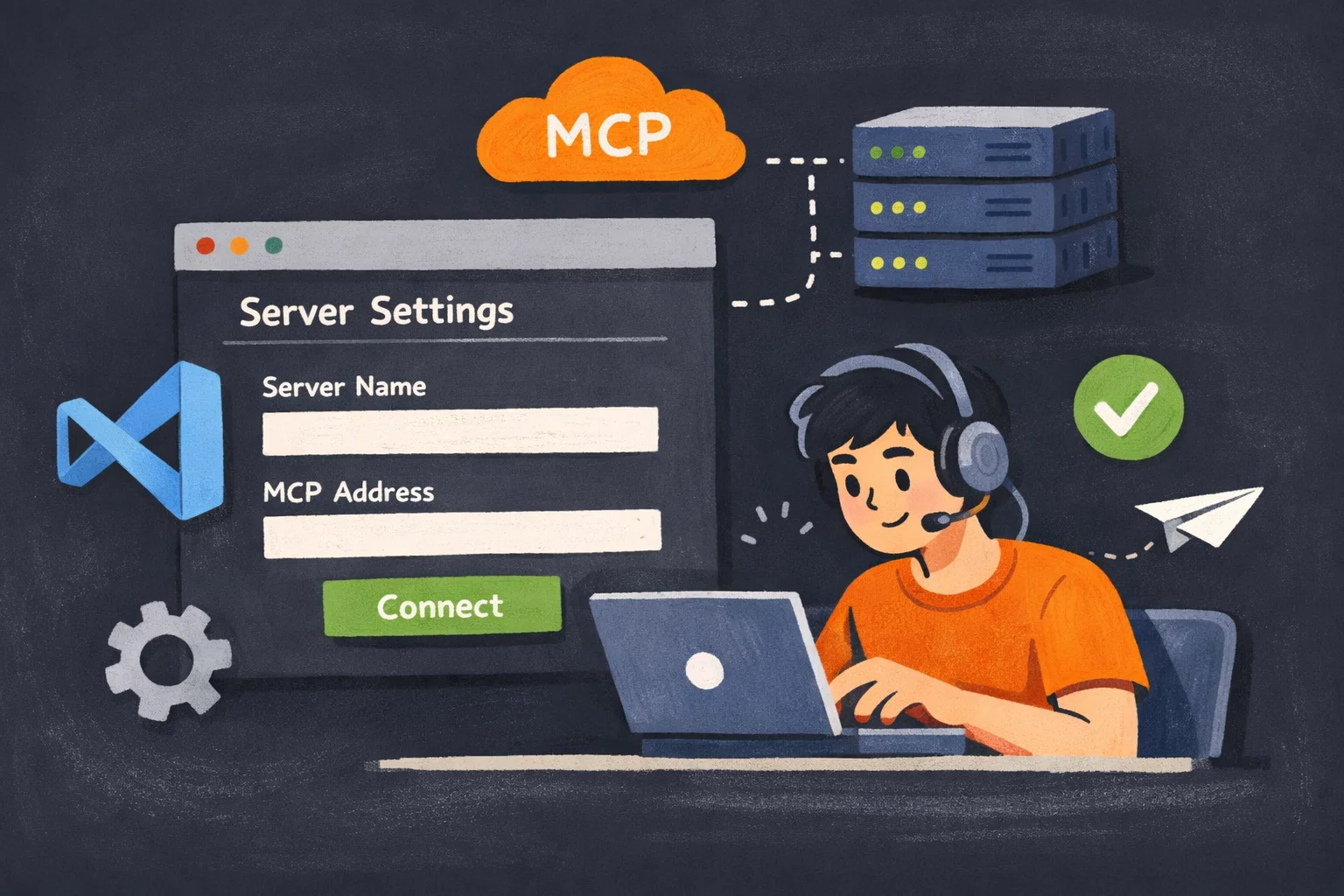
Each method caters to different use cases (e.g., solo projects, team collaboration, containerized environments, or automation).
Before starting, remember: Only add MCP servers from trusted sources—local servers can run arbitrary code on your machine.
Table of Contents
1. From the MCP Server Registry (Extensions View)
Use Case
Quick, one-click installation of pre-listed MCP servers (best for common, trusted servers).
Step-by-Step
- Enable the MCP gallery: Open VS Code settings (
Ctrl,,/⌘,,), search forchat.mcp.gallery.enabled, and check the box. - Open the Extensions view (
⇧⌘X/Ctrl+Shift+X). - Search for
@mcpto filter MCP servers from the GitHub registry (or runMCP: Browse Serversvia the Command Palette⇧⌘P/Ctrl+Shift+P). - Install:
- User-wide: Click
Install(available across all workspaces). - Workspace-only: Right-click the server →
Install in Workspace.
- User-wide: Click
2. Manual Configuration in Workspace mcp.json
Use Case
Share custom MCP server configs with your team (project-specific setup).
Step-by-Step
- In your project root, create a
.vscodefolder (if missing), then add amcp.jsonfile inside it. - Open
mcp.json—click theAdd Serverbutton for a template (VS Code provides IntelliSense for validation). - Add your server config (e.g., GitHub remote MCP server):
{ "servers": { "github-mcp": { "type": "http", "url": "<https://api.githubcopilot.com/mcp>" } } } - Critical: Never hardcode API keys/credentials—use environment variables or input variables instead.
3. Add to User Global Configuration
Use Case
Reuse the same MCP server across all your VS Code workspaces (global setup).
Step-by-Step
Method A (Command Palette)
- Open the Command Palette (
⇧⌘P/Ctrl+Shift+P) → runMCP: Add Server. - Enter the server details (type, URL/command, args) → select
Globalto save to your user profile.
Method B (Manual Edit)
- Run
MCP: Open User Configurationvia the Command Palette (opens your user-levelmcp.json). - Manually add the server config (same format as the workspace
mcp.jsonexample above).
Key Tip
Use VS Code profiles to assign different MCP servers to different workflows (e.g., Playwright MCP for web dev, Python MCP for data science).
4. Configure in Dev Containers
Use Case
Integrate MCP servers into containerized development environments (shared team dev setups).
Step-by-Step
- Open your project’s
devcontainer.jsonfile (create one if missing in.devcontainer/). - Add the MCP server config under
customizations.vscode.mcp:{ "image": "mcr.microsoft.com/devcontainers/typescript-node:latest", "customizations": { "vscode": { "mcp": { "servers": { "playwright": { "command": "npx", "args": ["-y", "@microsoft/mcp-server-playwright"] } } } } } } - Rebuild the Dev Container—VS Code auto-writes the config to the remote
mcp.jsonin the container.
5. Auto-Discover from Other Applications
Use Case
Reuse MCP server configs from external tools (e.g., Claude Desktop) without manual setup.
Step-by-Step
- Open VS Code settings (
Ctrl+,/⌘+,), search forchat.mcp.discovery.enabled, and enable the toggle. - Select the tools you want to auto-discover MCP servers from (VS Code lists supported apps like Claude Desktop).
- VS Code will automatically detect and import valid MCP server configs from the selected tools.
6. Install via VS Code Command Line (CLI)
Use Case
Automate MCP server installation (e.g., in scripts, CI/CD, or batch setups).
Step-by-Step
- Open your terminal (Command Prompt, Terminal, Bash).
- Run the
code --add-mcpcommand with your server config (JSON string)
# Add to user profile (global)
code --add-mcp "{\"name\":\"my-custom-server\",\"command\":\"uvx\",\"args\":[\"mcp-server-fetch\"]}"

# Add to a specific workspace (replace ./my-project with your project path)
code --folder-uri ./my-project --add-mcp "{\"name\":\"workspace-server\",\"type\":\"http\",\"url\":\"https://custom-mcp-server.com\"}"
Note
Ensure the JSON string is properly escaped (e.g., \\\\" instead of ") for terminal compatibility.
See also: Mastering the Linux Command Line — Your Complete Free Training Guide
Summary
- Security first: Only trust MCP servers from verified sources—local servers can execute arbitrary code on your machine.
- Match method to use case: Use the GitHub registry for quick installs, workspace
mcp.jsonfor team projects, Dev Containers for containerized setups, and CLI for automation. - Execution context: User-configured MCP servers run locally; remote/workspace-configured servers run on the target machine (remote/container).