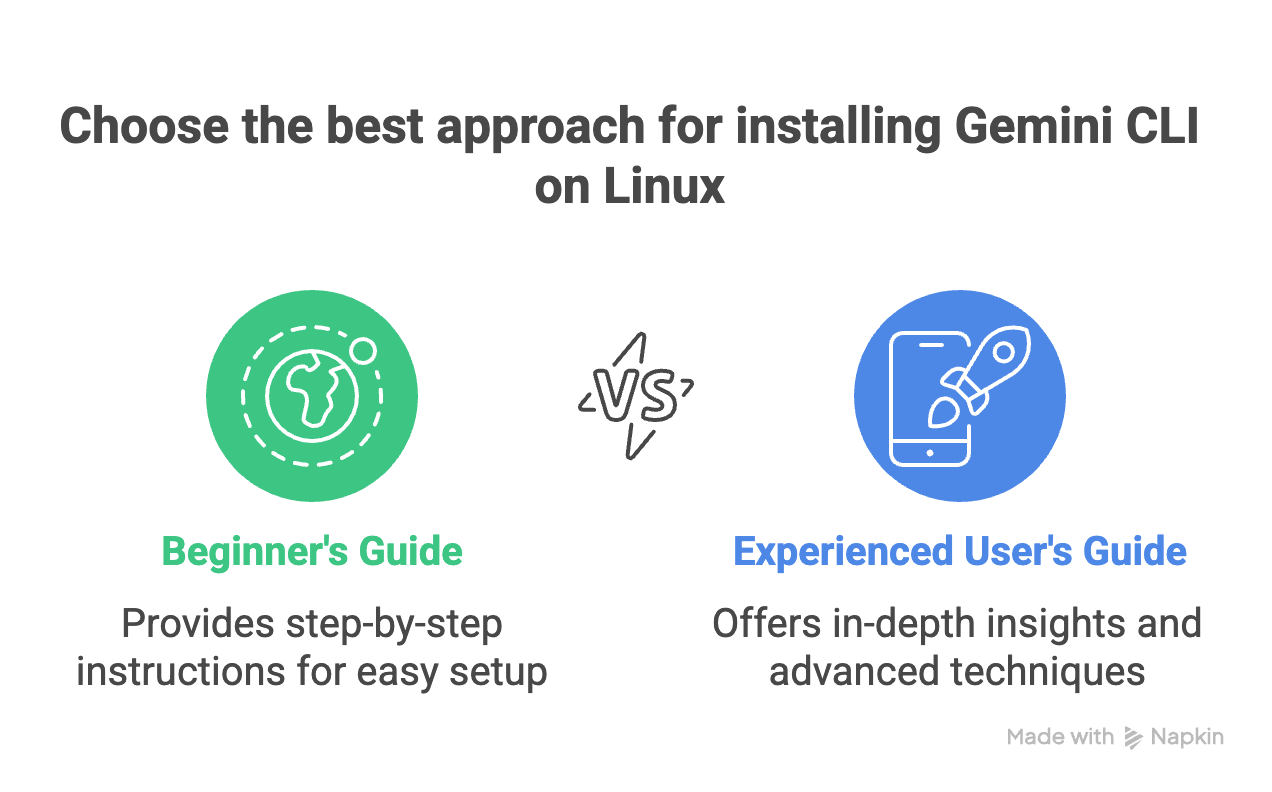
The Gemini Command Line Interface (CLI) is a powerful tool that brings Google’s sophisticated Gemini models right to your fingertips within the command line.
This step-by-step guide will walk you through the installation and initial setup of the Gemini CLI.
Table of Contents
Prerequisites: Setting the Stage for Installation
Before we dive in, let’s quickly check if you have the essentials. Don’t worry, it’s nothing too crazy:
- A Linux-based operating system: If you’re reading this, you probably have this covered! This works on Ubuntu, Debian, and other popular distros.
- Sudo permissions: You’ll need to be able to run commands as an administrator to get everything installed.
- A Google Account: This is your key to unlocking the free tier of the Gemini CLI, which is incredibly generous, offering up to 60 requests per minute.
- Node.js and npm: The Gemini CLI is built with modern web tech, so you’ll need Node.js (version 18 or higher is best) and its package manager, npm, to get it running.
Step 1: Installing or Updating Node.js
First, check if you already have Node.js and npm installed by opening your terminal and running the following commands:
node -v
npm -v
If these commands return a version number, and it meets the prerequisite of version 18 or higher, you can proceed to the next step. If not, or if the version is outdated, you’ll need to install or update it.
For Debian-based systems like Ubuntu, a common way to install Node.js is through the official repositories.
However, these repositories may not always have the latest version. A recommended approach is to use NodeSource’s binary distributions.
Here are the commands to install Node.js 20.x on an Ubuntu system:
# Downloads and executes the NodeSource setup script for Node.js 20.x
curl -fsSL <https://deb.nodesource.com/setup_20.x> | sudo -E bash -

# Installs Node.js
sudo apt-get install -y nodejs
After the installation, verify the versions again to ensure they are correctly installed.
Step 2: Installing the Gemini CLI
With Node.js and npm in place, you can now install the Gemini CLI. You have a couple of options for installation:
See also: Mastering the Linux Command Line — Your Complete Free Training Guide
- Global Installation with npm: This is the recommended method for making the
geminicommand available system-wide.sudo npm install -g @google/gemini-cliUsing
sudois often necessary to grant the permissions needed for a global installation. - Using npx: If you prefer not to install the package globally, you can use
npx, the Node.js package runner. This command will download and run the Gemini CLI without permanently installing it on your system.npx <https://github.com/google-gemini/gemini-cli>Note that with this method, you will need to use the full
npxcommand each time you want to run the Gemini CLI. - Using Homebrew: For those who use the Homebrew package manager on Linux, you can install the Gemini CLI with the following command:
brew install gemini-cli
Initial Configuration and Authentication
Once the installation is complete, you can start the Gemini CLI by simply typing:
gemini
The first time you run this command, you will be guided through a brief initial setup process.
- Select a Theme: You’ll be prompted to choose a visual theme for the CLI’s interface. You can navigate the options using the arrow keys and press Enter to confirm your selection.
- Authentication: Next, you will need to authenticate your account. You will be presented with several options, including:
- Login with Google Account: This is the most straightforward method and provides access to the free tier. Selecting this option will open a browser window where you can log in to your Google account and grant the necessary permissions.
- Gemini API Key: If you have a specific API key from Google AI Studio, you can choose this option.
- Vertex AI: This option is for more advanced, enterprise-level use cases.
After successfully authenticating, you will be dropped into the Gemini CLI prompt, ready to start interacting with the AI.
Getting Started with Gemini CLI
To get the most out of the Gemini CLI, it’s best to navigate to your project’s directory before launching it. This allows the AI to have context of your files and codebase.
Once in your desired directory, start the CLI:
cd /path/to/your/project
gemini
You can now interact with the AI using natural language. For example, you can ask it to:
- “Write and explain the code for a simple web server in Python.”
- “Summarize the changes in the
main.jsfile.” - “Explain the error message I’m getting from this script.”
The Gemini CLI also supports more advanced features, such as attaching local files to your conversation using the @ character and running shell commands directly by prefixing them with an !.
Troubleshooting Common Issues
While the installation is generally smooth, you might encounter a few common hiccups:
- Node.js Version Error: If you see an error related to the Node.js version, double-check that you have met the minimum requirement of version 18 or higher.
- Global npm Permission Errors: If you encounter permission errors during a global installation with
npm, ensure you are usingsudowith the command. - Authentication Failure: Make sure your default web browser is signed in to the correct Google account before you start the authentication process.
By following this guide, you should now have the Gemini CLI successfully installed and configured on your Linux system, ready to bring the power of AI to your command line and enhance your daily workflow.