
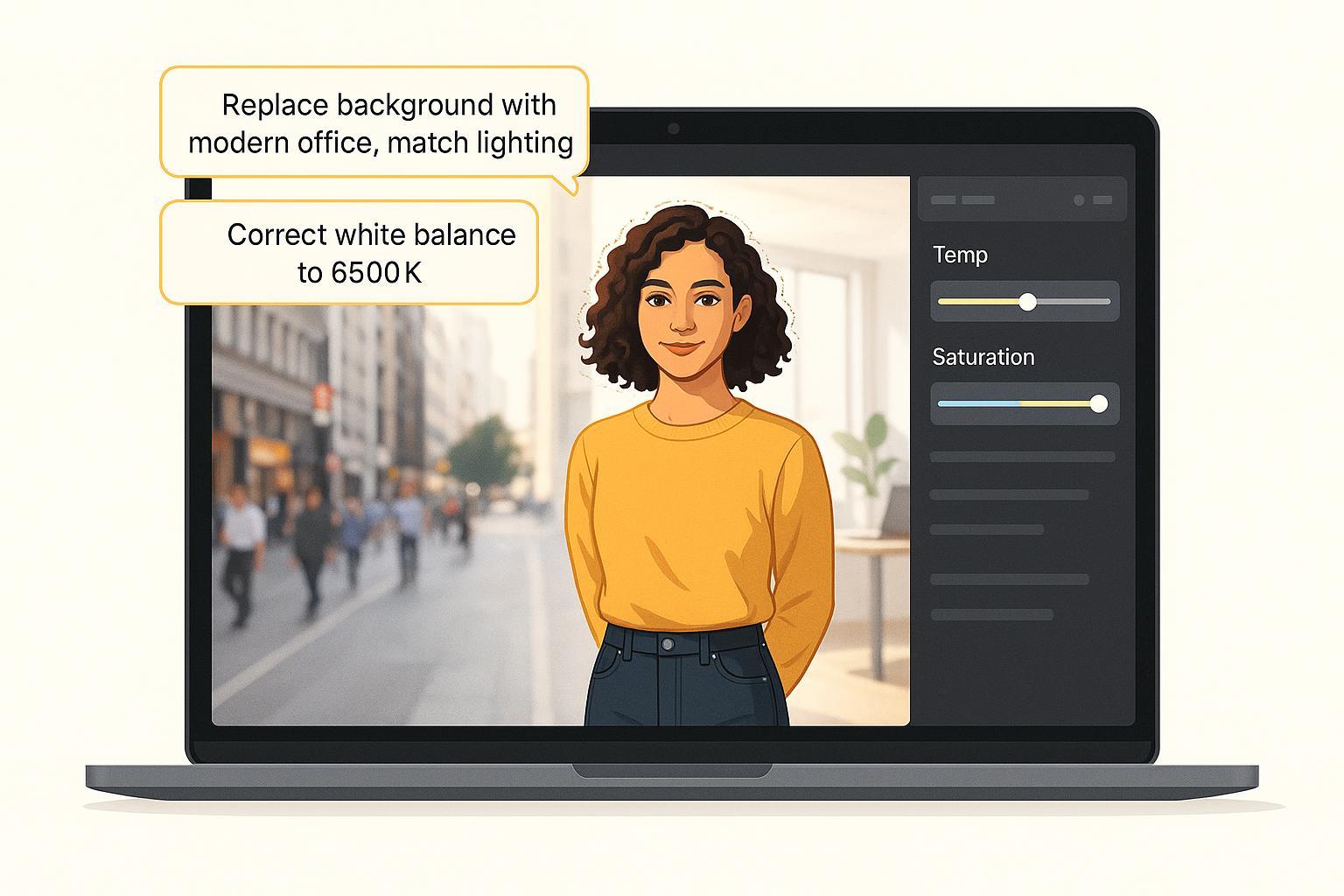
Ever wished you could just tell your photos what to do? “Make the background an office.” “Fix that weird blue color.” “Get rid of that distracting trash can.”
Well, that future is here.
Meet Nano Banana, the powerful new image-editing model inside Google’s Gemini.
If you can describe the change you want, this AI can probably make it happen—no complicated software or years of training required.
It’s a game-changer for content creators, marketers, or anyone who wants their photos to look a little more polished.
This guide will walk you through, step-by-step, how to use simple text prompts to replace backgrounds, fix colors, remove objects, and even relight a scene. It’s beginner-friendly, and you can expect to edit an image in just 3 to 10 minutes.
Table of Contents
What You’ll Need to Get Started
Before we jump into the fun stuff, let’s make sure you have everything you need:
- A Google Account: You’ll need this to access Gemini.
- The Gemini App: You can use it on the web or your phone. This is where you’ll upload your photo and type your editing commands.
- A Photo: Standard formats like JPEG or PNG work perfectly fine in the app.
- One Pro Tip Before You Begin: Always keep your original photo! Save new versions as you make changes.
This whole process is powered by Google Developers Blog — Introducing Gemini 2.5 Flash Image, 2025.
Part 1: Replace a Background in 5 Easy Steps
Tired of that boring wall behind your headshot? Let’s swap it out for something better.
Step 1: Upload Your Image and Make the First Request
Head over to Gemini and start a new chat. Upload your photo and type a clear request. Google Help — Create or edit images in Gemini, 2025.
See also: Mastering the Linux Command Line — Your Complete Free Training Guide
Try this prompt:
“Keep the person. Replace the background with a softly lit modern office, 35mm look. Match shadows and color temperature.”
Step 2: Clean Up the Edges
Sometimes, the AI might leave a little “halo” around your subject. No problem—just ask it to fix it. CNET — Nano Bananas image editing slipups, 2025.
Refinement prompt:
“Reduce halos around hair. Make the edges soft and natural. Preserve fine strands.”
Step 3: Make the Lighting Believable
Does your subject look cut and pasted? That’s usually a lighting issue.
Try this prompt:
“Match lighting to late afternoon. Make the shadow fall to camera-right. Keep realistic softness.”
Step 4: Fine-Tune the New Background
Too busy? Wrong color? You can fix that too.
- Simplify a busy background: “Simplify background details. Add a slight blur to create an f/4 look, but keep the subject crisp.”
- Fix color temperature: “Match color temperature so subject and background feel cohesive.”
Step 5: Zoom In and Check Your Work
Download the final image, zoom to 100% or 200%, and check edges, shadows, and color.
Part 2: Fix Colors and Make Your Photos Pop
Ever take a photo that just looks… off? Gemini can fix that in minutes.
Step 1: Tell the AI What’s Wrong
Be specific: “There’s a green cast on the skin,” or “The reds are too saturated.”
Step 2: Apply a General Color Correction
Try this prompt:
“Correct white balance to neutral daylight (6500K). Slightly lower saturation. Keep natural skin tones.”
Step 3: Protect What’s Important
Add constraints to keep important colors intact. Google — Image generation prompting tips, 2025.
Step 4: Spot-Fix Specific Areas
- “Reduce the saturation on the blue shirt only. Keep the rest unchanged.”
Step 5: Final Check
Check skin tones, shadows, and product colors before publishing.
Two More Quick Wins: Removing Objects and Relighting a Scene
Remove Distracting Objects
That stray coffee cup? Gone. If the fill looks smudgy, just re-run the prompt.
Try this prompt:
“Remove the trash can on the left. Fill the space with a seamless brick texture. No repeating patterns.”
Relight Your Photo for a Different Mood
- For sunset: “Golden hour lighting from camera left. Keep realistic contrast. Add soft contact shadow under feet.”
Frequently Asked Questions (FAQs) About Nano Banana
1. What exactly is Nano Banana?
Google Developers Blog — Introducing Gemini 2.5 Flash Image, 2025
Nano Banana is Google’s new AI-powered image editing model inside Gemini.
It lets you edit photos with natural language prompts — no manual selections, no layers, no Photoshop skills required.
2. Is Nano Banana free to use?
Google Help — Gemini Plans and Pricing, 2025
Yes, basic usage is free if you have a Google account.
However, heavy users or professionals might eventually need a paid Gemini plan if they want higher resolution outputs or more generations per month.
3. What types of edits can it do?
Google Help — Create or Edit Images in Gemini, 2025
Nano Banana can:
- Replace or blur backgrounds
- Remove objects
- Fix lighting and color
- Relight a scene (change mood or time of day)
- Upscale images or enhance details
It works best on portraits, product photos, and clear scenes with good lighting.
4. Are my photos stored by Google?
Gemini processes images in the cloud, and Google states they may be used to improve the model depending on your privacy settings.
If you want to limit data usage, you can disable image history in Gemini settings.
5. Can it edit multiple areas at once?
Google Blog — Image Generation Prompting Tips, 2025
Yes — you can include multiple instructions in a single prompt. For example:
“Remove the trash can, brighten the subject, and blur the background slightly.”
If the result isn’t perfect, you can refine step by step.
6. Does it work for professional photography?
It’s powerful for quick edits, social media content, and marketing materials.
But if you need pixel-perfect, mask-based precision (for high-end commercial work), Photoshop or other pro tools still give you more control.
7. Can I use it on my phone?
Google Help — Use Gemini on Mobile, 2025
Absolutely. You can use Nano Banana directly from the Gemini app on iOS and Android, which makes on-the-go edits very convenient.
8. How is it different from Canva or remove.bg?
Canva Help — New Photo Editor, 2025
Nano Banana is more general — you can combine multiple edits in one go, just by describing what you want.
remove.bg — Change Background, 2025 focuses only on background removal.
9. What if the result looks weird or unrealistic?
CNET — Nano Bananas Image Editing Slipups, 2025
Just re-run the prompt or rephrase it with more detail.
Iteration is key — even small prompt tweaks can produce much better results.
10. Can I use the edited photos commercially?
Google Terms of Service — Gemini, 2025
Yes. Google allows commercial use of images you edit with Gemini, but always double-check the terms of service to ensure compliance with your specific use case.
When to Use a Different Tool
Nano Banana is great for quick edits, but sometimes you need precision:
- For surgical precision: Adobe — Generative Fill, 2025.
- For fast e-commerce cutouts: remove.bg — Change background, 2025.
- For social media templates: Canva — New Photo Editor help, 2025 and PhotoRoom — Background tips for headshots, 2025.
- For developers: Google Cloud — Imagen mask edit sample, 2025.


This is exactly what I’ve been looking for! 🎉 Being able to just tell the AI what to do — like “make it golden hour” or “remove the trash can” — feels like magic. I really appreciate the step-by-step breakdown, especially the tip about checking edges at 200% before publishing. Can’t wait to try Nano Banana on some of my product shots.
This looks amazing! I’ve always struggled with photo editing software, so being able to just type what I want sounds like a game changer.
I used this for some quick marketing assets last week. It saved hours of manual editing, and clients were impressed with the results.
You’re so awesome!So great to find someone with some original thoughts on this topic. Really.. thank you for starting this up.