

Many Linux users ask questions like: “How can I check the size of a file in Linux?” or “What’s the best way to find out how much space a directory occupies?”
In this guide, we’ll cover four practical methods to check file size in Linux using the du, ls, stat, and find commands—each with real command examples and their output.
Table of Contents
Key Takeaways: How to Check File Size in Linux
ducommand → Shows how much disk space a file or directory is actually using. This is your best choice for checking real storage usage.lscommand → Lists files and directories and displays their apparent size along with details like permissions and ownership. Best for a quick glance at file sizes in a directory.statcommand → Provides detailed file information, including the exact size in bytes and metadata.findcommand → Helps you locate files by size, name, or type, making it easy to search for large or small files across directories.
Tip: Use du -sh for directories, ls -lh for quick file size checks, stat -c "%s" for exact byte counts, and find / -size +100M to locate large files.
In Linux, everything is a file. A file isn’t only text files, images, and compiled programs—it also includes partitions, hardware device drivers, and directories. This article uses text files as examples. If you want to check your disk size instead, see this article.
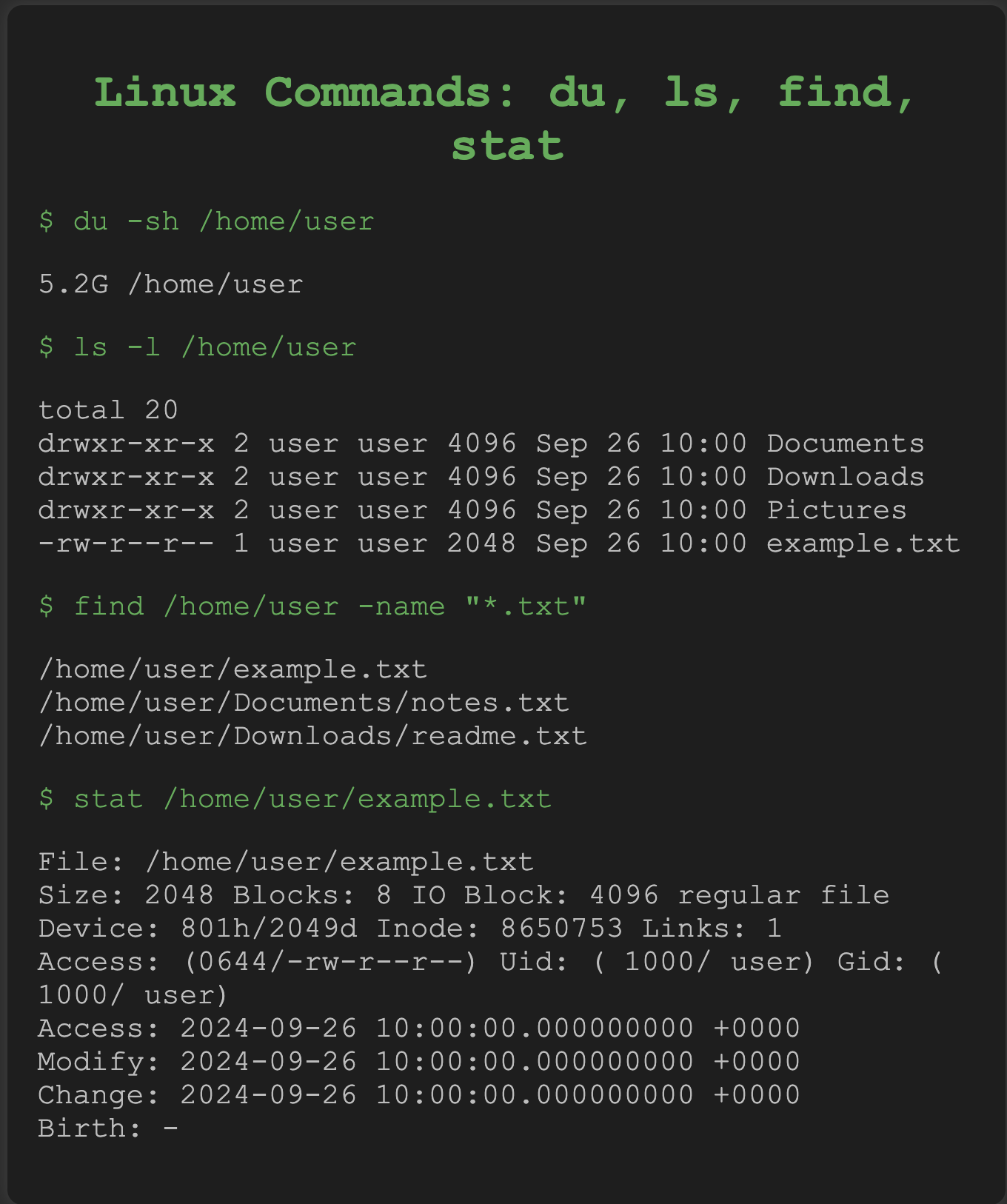
The following commands can be used to check file size:
| Command | What it does |
|---|---|
du -h filename | Check the size of the specified file |
du -sh dir | Check the size of a directory, including its subdirectories |
ls -lh filename | Check the size of the specified file |
ls -lh * | Check the size of all files in the current directory |
ls -alh * | Check the size of all files, including hidden files |
ls -alh dir/ | Check the size of all files (incl. hidden) in dir |
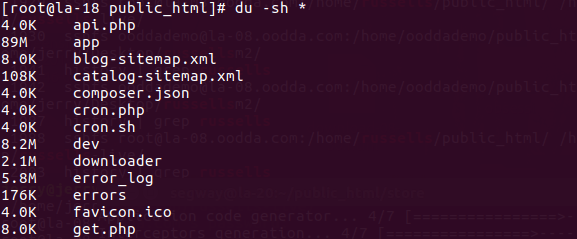
Quick procedure to check file size in Linux
- Open the terminal application.
- Change into the directory where the file is located with the
cdcommand. - Type
du -h filename. - Press Enter to run the command.
- The output displays the size of the file.
The -h option prints the size in a human-readable format (e.g., 1K, 234M, 2G).
Method 1: Check file size with the du command
The most reliable way to check the real disk usage of a file in Linux is the du command. Change into the directory where the file is located, then run du -h with the file name. The size is shown in the first column, in human-readable units (bytes, KB, MB, GB, and so on).
Here’s how Red Hat describes it:
The
ducommand summarizes disk usage of each file and, recursively, for each directory. It offers many helpful options individually or in combination.
Check the size of a single file
cd ~
du -h test
Output:
See also: Mastering the Linux Command Line — Your Complete Free Training Guide
4.0K test
You can also pass the full path instead of changing directories first:
du -h ~/test
Output:
4.0K /home/howtouselinux/test
Here ~ means the home directory in Linux. From the output, the size of the file test is 4.0K.
Extract just the size in a bash script
filesize=$(du -h /etc/passwd | awk '{ print $1 }')
echo "$filesize"
Output:
4.0K
Check the size of every file in the current directory
du -h *
Check the size of a directory
Can du also measure a whole directory? Yes. To get the size of a directory in Linux, use du -sh. The -s (summary) flag prints a single total for the directory rather than listing every file and subdirectory inside it—the most efficient way to size a directory:
du -sh /home/howtouselinux
du -sh /etc/
Output:
48K     /home/howtouselinux
46M     /etc/
Without -s, du walks the tree and reports each subdirectory. Compare the raw (kilobyte) output with the human-readable version:
du /home/howtouselinux
Output:
40000   /home/howtouselinux/downloads
4096    /home/howtouselinux/.mozilla/plugins
4096    /home/howtouselinux/.mozilla/extensions
du -h /home/howtouselinux
Output:
40K     /home/howtouselinux/downloads
4.0K    /home/howtouselinux/.mozilla/plugins
4.0K    /home/howtouselinux/.mozilla/extensions
In short: use du -h filename for a single file and du -sh dir for a directory:
du -h /etc/lvm/lvm.conf
du -sh /etc/
Output:
96K     /etc/lvm/lvm.conf
46M     /etc/
If you’re unsure when to use du versus df, we summarized all the differences here.
Method 2: Get file size with the ls command
Use ls -lh to see a file’s size in human-readable format (bytes, KB, MB, GB).
Note: you cannot use ls to measure a directory’s total size—that’s a key difference between ls and du.
The ls command is one of the most basic commands in Linux; it prints the contents of a directory. By default it lists names only, but flags reveal more, such as file permissions and the file owner:
-llists files in long format (size, owner, group, permissions, etc.).-hshows the size in human-readable format.-Ssorts the files by size, largest first—handy for finding big files.
Long format shows the size in bytes
ls -l test.txt
Output:
-rw-r--r-- 1 user group 987 Apr 12 13:37 test.txt
The 987 is the file size in bytes.
Human-readable format
For larger files, add -h so the size is easier to read:
ls -lh backup.tar
Output:
-rw-r--r-- 1 user group 987M Apr 12 13:37 backup.tar
Here 987M means roughly 987 megabytes. (For a small file like the 987-byte test.txt above, ls -lh simply prints 987, since it’s under one kilobyte.)
Listing a whole directory
ls -l
Output:
total 176
-rw-r--r--. 1 root root  683 Aug 19 09:59 0001.pcap
-rw-------. 1 root root 1586 Jul 31 02:17 anaconda-ks.cfg
drwxr-xr-x. 2 root root 4096 Jul 31 02:48 Desktop
ls -lh
Output:
total 176K
-rw-r--r--. 1 root root  683 Aug 19 09:59 0001.pcap
-rw-------. 1 root root 1.6K Jul 31 02:17 anaconda-ks.cfg
drwxr-xr-x. 2 root root 4.0K Jul 31 02:48 Desktop
ls vs du: why the sizes can differ
Linux supports a file type called a sparse file—a file with “holes” that contain no actual data. A sparse file only allocates disk space for the data actually stored, so it can appear far larger than the space it occupies on disk.
For such files, ls reports a much larger size than du:
lsshows the apparent size of the file (how many bytes you’d read if you opened it).dushows the actual disk usage, which can be smaller because of holes.
So when you need the exact disk space a file consumes, du is the right command.
Method 3: Get file size with the find command
The find command searches for files and directories that match conditions you specify. You can find files by name, permissions, users, groups, file types, date, size, and more—recursively through subdirectories.
Find all files that are (approximately) 50 MB:
find / -size 50M
Find all files larger than 50 MB but smaller than 100 MB:
find / -size +50M -size -100M
A + prefix means “greater than,” and - means “less than.” Combine find with ls -lh to also print the sizes it locates:
find / -size +100M -exec ls -lh {} \;
Output (example):
-rw-r--r-- 1 root root 240M Aug 20 11:02 /var/log/journal/system.journal
-rw-r--r-- 1 mysql mysql 1.2G Aug 21 03:15 /var/lib/mysql/ibdata1
Method 4: Check file size with the stat command
The stat command shows detailed, system-level information: permissions, owner, group, size, last modification time, and more.
stat file.txt
Output:
  File: file.txt
  Size: 4030          Blocks: 8          IO Block: 4096   regular file
Device: 801h/2049d    Inode: 13633379    Links: 1
Access: (0644/-rw-r--r--)  Uid: ( 1000/ howtouselinux)   Gid: ( 1000/ howtouselinux)
Access: 2019-11-06 09:52:17.991979701 +0100
Modify: 2019-11-06 09:52:17.971979713 +0100
Change: 2019-11-06 09:52:17.971979713 +0100
 Birth: -
To print only the size in bytes, use -c "%s":
stat -c "%s" file.txt
Output:
4030
Summary: which command should you use?
| Goal | Best command | Example |
|---|---|---|
| Real disk usage of a file | du | du -h file.txt |
| Total size of a directory | du -sh | du -sh /etc/ |
| Quick size + permissions/owner | ls -lh | ls -lh file.txt |
| Exact size in bytes | stat -c "%s" | stat -c "%s" file.txt |
| Locate files by size | find | find / -size +100M |
For everyday checks, ls -lh is fastest. When you need the true space a file or directory occupies on disk, reach for du. Use stat for an exact byte count and full metadata, and find when you need to hunt down large files across the filesystem. Knowing the difference between apparent size (ls) and disk usage (du) is what keeps your storage math honest.


what command would you use to sort all files by the sizes within a directory?
@Samuel M,
du -sh * |sort -h
https://www.howtouselinux.com/post/sort-linux-ls-command-output-by-file-size
I tried to check the size of a file in Linux using the ‘ls -lh’ command. Normally, this command would list the file details including the file size in a human-readable format.
However, on that particular occasion, the file size returned was much larger than expected, it showed several terabytes for a text file.
I still don’t know what happened.
I copied a file to a remote server and noticed that the file size has changed, but the MD5 checksum remains the same. Any idea why this happened?
You are the Linux expert. Thanks for the detailed info.
Thanks for the comment. It means a lot to me.
Totally agree.
du command is the accurate way to check file size. It can give you the disk usage.
That is great. Thanks for the Linux basics.