If you have ever SSHed into a Linux server and wondered why your DNS settings keep changing after a reboot, or why editing resolv.conf directly never seems to stick — you are not alone. This file is one of the most misunderstood pieces of Linux networking.
Let’s trace exactly where it comes from, who writes it, and how to control it.
Table of Contents
What Is resolv.conf?
It is a plain text file with one job: tell the system where to send DNS queries.
A typical file looks like this:
# Generated by NetworkManager
nameserver 8.8.8.8
nameserver 8.8.4.4
search example.com
Every time your system needs to resolve a hostname — ping google.com, curl api.example.com, anything — the C library (glibc) reads this file and sends the DNS query to whichever nameserver is listed.
Simple enough. The problem is: who writes this file?
The Problem: Too Many Cooks
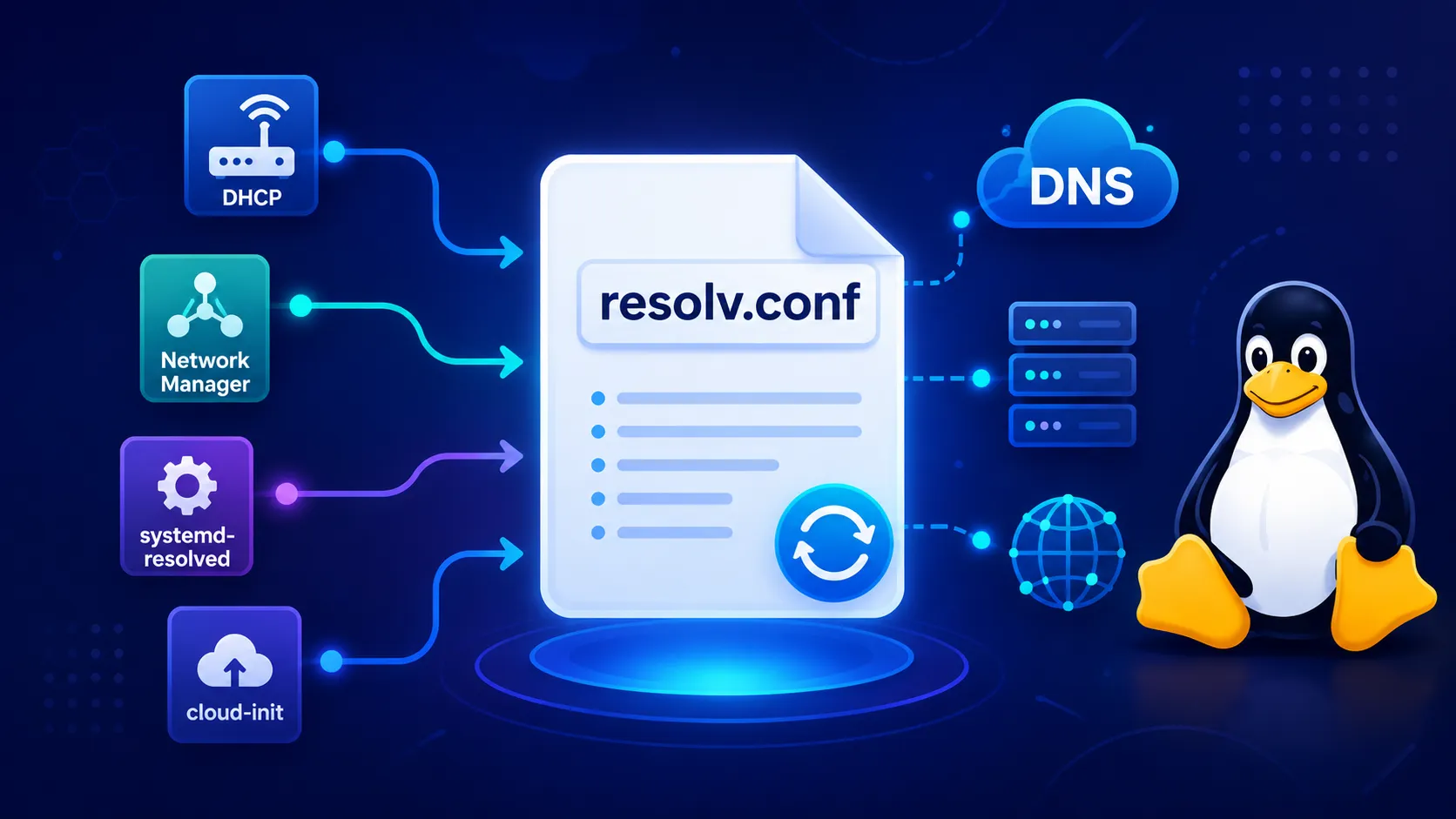
On a modern Linux system, resolv.conf can be written by any of the following:
- NetworkManager — the network management daemon used by RHEL, Ubuntu desktop, Fedora
- DHCP client (
dhclient,dhcpcd) — when your interface gets an IP, it also receives DNS servers - cloud-init — runs on first boot in cloud environments (AWS, Azure, GCP) and configures networking
- systemd-resolved — a systemd service that manages DNS with caching and advanced features
- You — if you edit it manually
The confusion arises because these components overlap. If two of them manage the file at the same time, they overwrite each other. Your manual edits disappear on reboot. DNS suddenly stops working after a network change. resolv.conf shows settings you never configured.
To understand why, you need to see the full chain.
The Full Generation Chain
Step 1: Hardware/Network comes up
When a network interface becomes active, it needs an IP address and DNS servers. This usually happens via DHCP — the router or DHCP server hands the machine its network configuration, including DNS.
See also: Mastering the Linux Command Line — Your Complete Free Training Guide
DHCP Server
    |
    | lease: IP=10.0.0.5, DNS=10.0.0.1, domain=internal.example.com
    v
Network Interface (eth0)
Step 2: Who handles the DHCP lease?
This is where distributions diverge.
On RHEL 8/9, Fedora, modern Ubuntu (server):
NetworkManager takes ownership of the interface. It runs its own built-in DHCP client and receives the lease directly.
DHCP Server --> NetworkManager --> /etc/resolv.confOn older systems or minimal installs:
A standalone DHCP client (dhclient) runs independently and writes DNS settings directly to resolv.conf or passes them to NetworkManager.
DHCP Server --> dhclient --> /etc/resolv.conf
                         or
                         --> NetworkManager --> /etc/resolv.conf
Step 3: NetworkManager writes the file
When NetworkManager receives DNS information (from DHCP, from a VPN, or from static configuration), it generates resolv.conf.
You can see this in the file header:
# Generated by NetworkManagerNetworkManager’s DNS behavior is controlled by /etc/NetworkManager/NetworkManager.conf:
[main]
dns=default        # NM writes /etc/resolv.conf directly (default)
dns=systemd-resolved  # NM delegates to systemd-resolved
dns=none           # NM does not touch /etc/resolv.conf
Enter systemd-resolved
On modern Ubuntu (18.04+) and increasingly on RHEL 9, systemd-resolved is the DNS manager. It is a local caching DNS stub resolver — a tiny DNS server that runs on 127.0.0.53 and handles all queries on behalf of the system.
When systemd-resolved is in charge, resolv.conf is actually a symlink, not a real file:
ls -la /etc/resolv.conf
# lrwxrwxrwx 1 root root 39 ... /etc/resolv.conf -> /run/systemd/resolve/stub-resolv.conf
The stub file contains only:
nameserver 127.0.0.53
options edns0 trust-ad
This means all DNS queries go to systemd-resolved locally first. It handles caching, DNSSEC validation, and per-interface DNS — and it knows the real upstream DNS servers received from DHCP or NetworkManager.
To see what upstream DNS servers systemd-resolved is actually using:
resolvectl statusEnter cloud-init
In cloud environments (AWS EC2, Azure VM, GCP Compute), the machine boots with no persistent network configuration. cloud-init runs very early in the boot process and configures the network before NetworkManager fully takes over.
The boot order looks like:
Kernel boots
    |
    v
cloud-init (early stage)
    | -- sets hostname
    | -- writes /etc/hosts
    | -- may configure /etc/resolv.conf directly
    v
NetworkManager starts
    | -- reads DHCP lease
    | -- overwrites /etc/resolv.conf
    v
systemd-resolved (if enabled)
    | -- takes over as symlink target
    v
System ready
If cloud-init writes resolv.conf and then NetworkManager overwrites it 5 seconds later, your cloud-init DNS settings disappear. This is a common source of confusion in cloud deployments.
To make cloud-init’s DNS settings survive, you configure NetworkManager through cloud-init instead of touching resolv.conf directly:
# cloud-init network config (v2 format)
network:
  version: 2
  ethernets:
    eth0:
      dhcp4: true
      nameservers:
        addresses: [8.8.8.8, 8.8.4.4]
The Complete Picture
Cloud Provider metadata / DHCP Server
            |
            v
       cloud-init  (first boot only)
            |
            v
    NetworkManager  (ongoing, every boot)
       /        \
      /          \
dhclient        static config
      \          /
       \        /
        v      v
    DNS decision:
    dns=default  -->  writes /etc/resolv.conf directly
    dns=systemd-resolved --> tells systemd-resolved
                                    |
                                    v
                            /etc/resolv.conf
                            (symlink to stub)
                                    |
                                    v
                            127.0.0.53 (local resolver)
                                    |
                                    v
                        Upstream DNS (real nameservers)
Why Your Manual Edits Don’t Stick
Now it makes sense. When you edit resolv.conf by hand:
- If it is a symlink (systemd-resolved), your editor may overwrite the symlink with a plain file — which then gets replaced on the next network event
- If NetworkManager manages it, the next time your network reconnects or DHCP renews, NetworkManager overwrites your changes
- If cloud-init is running on every boot (some misconfigured cloud images do this), it resets the file on every reboot
How to Make Changes That Stick
| Situation | Correct approach |
|---|---|
| NetworkManager manages DNS | Edit via nmcli or connection file in /etc/NetworkManager/system-connections/ |
| systemd-resolved is active | Use resolvectl dns eth0 8.8.8.8 or edit /etc/systemd/resolved.conf |
| Cloud environment | Configure DNS in cloud-init network config |
| You want full manual control | Set dns=none in NetworkManager.conf, then manage resolv.conf yourself |
| Quick permanent override | Use chattr +i /etc/resolv.conf to make the file immutable (emergency measure only) |
Quick Diagnostic Commands
# Who wrote this file?
head -3 /etc/resolv.conf

# Is it a symlink?
ls -la /etc/resolv.conf

# What does systemd-resolved know?
resolvectl status

# What DNS does NetworkManager have configured?
nmcli dev show | grep DNS

# What DNS did DHCP provide?
nmcli con show <connection-name> | grep DNS
Key Takeaways
- resolv.conf is rarely a file you should edit directly on modern Linux
- The true source of DNS configuration is NetworkManager, which gets it from DHCP or static config
- systemd-resolved adds a caching layer and turns the file into a symlink
- cloud-init runs early and feeds network config to NetworkManager, not directly to the file
- To make DNS changes permanent, go to the source — not the file itself
Once you understand the chain, the mystery disappears. The file is just the final output of a pipeline that starts at your DHCP server or cloud provider and flows through several layers before it reaches the one place the system actually reads.