

“The server is slow” is one of the least useful bug reports you can get, and one of the most common.
Slow can mean the CPU is maxed out. It can mean the disk is taking half a second to answer every write. It can mean the box is swapping, or it can mean the server is perfectly healthy and the application is stuck waiting on a database in another data center.
Over the years, I’ve learned that the fastest way to fix a slow server is to not start fixing anything. First find out which resource is actually under pressure. Only then change something.
This is the process I follow, in the order I follow it.
Table of Contents
The First 60 Seconds
Before I dig into any one area, I run a handful of commands to get the big picture:
uptime
vmstat 1 5
free -h
df -h
dmesg -T | tail -20
Each one answers a specific question:
uptime: Is the system under more load than usual?vmstat 1 5: Is the CPU busy, waiting on disk, or swapping?free -h: Is memory actually running out?df -h: Is a filesystem full?dmesg -T | tail: Has the kernel complained about anything, such as disk errors or the OOM killer?
This takes less than a minute, and it usually tells me which of the sections below to jump to.
It’s also worth asking a few non-technical questions before going further:
- Is everything slow, or only one application or endpoint?
- Is the SSH session itself sluggish?
- When did it start? Did anything change around that time, such as a deployment, a cron job, a backup, or a traffic spike?
A surprising number of “slow server” incidents end right here.
Step 1: Understand the Load Average
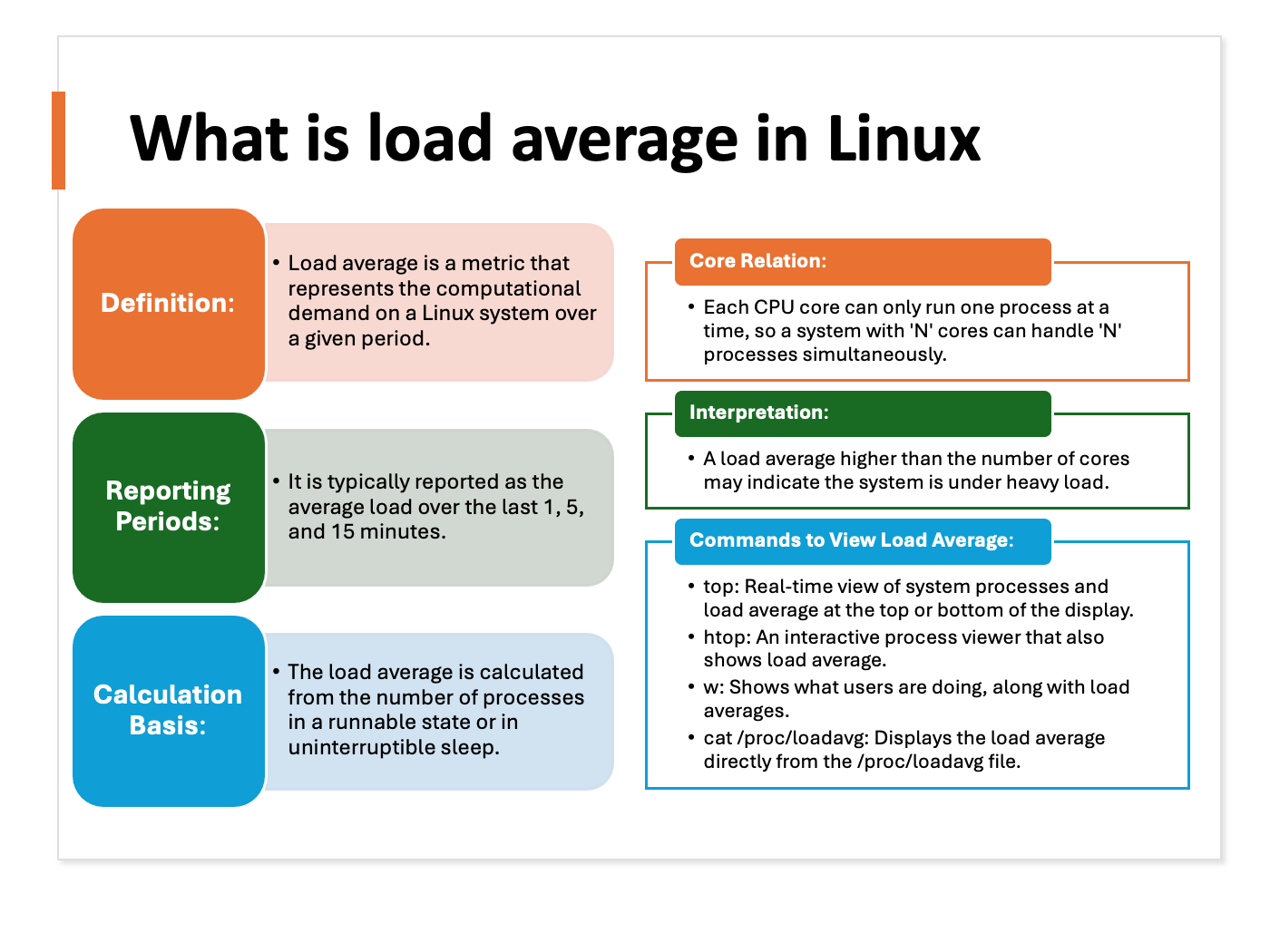
uptime
14:32:10 up 23 days, 6:41, 2 users, load average: 9.12, 8.47, 3.20
The three numbers are averages over the last 1, 5, and 15 minutes. Reading them left to right tells you the trend. Here, load jumped from about 3 to about 9 within the last few minutes, so something recent is going on.
See also: Mastering the Linux Command Line — Your Complete Linux Training Course
Compare the load with the number of CPUs:
nproc
4
A load of 9 on a 4-CPU machine means there’s more work than the CPUs can handle at once.
But here’s the part many guides get wrong: on Linux, load average isn’t just CPU. It counts tasks that are running or waiting to run, plus tasks stuck in uninterruptible sleep, which is usually waiting for disk or network storage. A server with a high load and an idle CPU is almost always waiting on I/O.
So after uptime, I always look at vmstat to see what kind of load it is:
vmstat 1 5
procs -----------memory---------- ---swap-- -----io---- -system-- ------cpu-----
 r  b   swpd   free   buff  cache   si   so    bi    bo   in   cs us sy id wa st
 9  0      0 812344 102400 3145728    0    0     2    15 4210 8830 91  7  2  0  0
 8  0      0 811920 102400 3145730    0    0     0    12 4188 8702 92  6  2  0  0
10  0      0 811600 102400 3145731    0    0     0    20 4302 8915 90  8  2  0  0
Ignore the first line, which is an average since boot. Then look at:
r: tasks running or waiting for a CPU. Here it’s about 9 on a 4-CPU box, so tasks are queuing for CPU.b: tasks blocked, usually on I/O. It’s 0 here.usandsy: user and system CPU time. Together they’re above 95%.wa: time the CPU sat idle waiting for I/O. It’s 0 here.st: steal time, CPU taken by the hypervisor for other VMs. More on this below.
This is a classic CPU-bound pattern. If instead you saw a high b and a high wa with plenty of idle CPU, you’d skip ahead to the disk section.
Find the process
top
Press P to sort by CPU and 1 to show each CPU separately. For a scriptable version:
ps -eo pid,user,%cpu,%mem,etime,comm --sort=-%cpu | head
    PID USER     %CPU %MEM     ELAPSED COMMAND
  28411 app       385  6.2       08:14 java
   1204 postgres   12  4.8  23-06:40:12 postgres
    812 root        2  0.1  23-06:41:02 containerd
A Java process at 385% (almost four full CPUs) that started 8 minutes ago lines up with the jump in load. That’s a strong lead.
If pidstat from the sysstat package is installed, it’s even better, because it shows how CPU usage changes second by second:
pidstat -u 1 5
What to do about it
This is where I slow down. The process at the top of top isn’t automatically the villain.
- If it’s a runaway job (a stuck script, a cron job that shouldn’t be running at noon, a duplicate worker), stopping it is reasonable. Try a gentle
kill <PID>first, which sendsSIGTERM. Only usekill -9if the process ignores it. - If it’s your main application, killing it just turns “slow” into “down”. Find out why it’s busy: more traffic, a new deployment, an expensive request, garbage collection.
- If it’s the database, it’s often doing exactly what it was asked to do. The real fix is usually a slow query or a missing index.
- If it’s important but not urgent, you can lower its priority with
renice +10 -p <PID>while you investigate.
Don’t forget steal time
On cloud VMs, check the st column in vmstat or top. If it’s consistently above a few percent, your VM is waiting for physical CPU that the hypervisor is giving to someone else. No amount of tuning inside the VM will fix that. You need a larger instance type, a different instance family, or a word with your provider.
Step 2: Check Whether the Disk Is the Bottleneck

Disk problems are sneaky. The CPU looks idle, memory looks fine, and yet everything feels frozen. vmstat gives it away with a high b and high wa:
 r  b   swpd   free   buff  cache   si   so    bi    bo   in   cs us sy id wa st
 1 12      0 902344 102400 2945728    0    0   120 98304 1210 2830  4  3 41 52  0
Twelve tasks blocked, 52% of CPU time waiting on I/O, and heavy writes (bo). The CPU isn’t busy. It’s waiting.
Start with the simple stuff: is anything full?
df -h
df -i
df -h shows disk space. df -i shows inodes, the number of files a filesystem can hold. A filesystem can run out of inodes while still showing plenty of free space, usually because something created millions of tiny files, such as session files or a mail queue. When either one hits 100%, applications start failing in strange ways.
Measure latency with iostat
iostat -xz 1 5
Device   r/s     w/s   rkB/s     wkB/s  r_await  w_await  aqu-sz  %util
nvme0n1  12.0    35.0   480.0    1200.0     0.21     0.35    0.02    1.9
sdb       4.0  1850.0    64.0  118400.0     9.80   145.60   42.10   99.8
The columns I care about most:
r_await/w_await: average time in milliseconds for a read or write to complete, including time spent in the queue. This is the number your users feel.aqu-sz: average number of requests queued on the device.%util: the percentage of time the device was busy.
In this example, sdb is taking about 146 ms per write, with 42 requests queued. That’s a disk that can’t keep up. nvme0n1 is barely doing anything.
A word of caution about %util: on SSDs, NVMe drives, and RAID arrays, the device can process many requests in parallel, so 100% %util doesn’t necessarily mean it’s saturated. Trust latency (await) and queue size over %util.
What counts as “slow” depends on the hardware. A few milliseconds is normal for a spinning disk. NVMe should usually be well under a millisecond. Cloud block storage sits somewhere in between. The most useful comparison is against what the same disk looks like on a normal day.
Find the process doing the I/O
sudo iotop -o
-o shows only processes that are actually doing I/O right now. If iotop isn’t installed, pidstat works too:
pidstat -d 1 5
UID      PID   kB_rd/s   kB_wr/s kB_ccwr/s  Command
    0   9921      0.00  116812.00      0.00  tar
  999   1204     12.00    1540.00      0.00  postgres
Here, a tar job is writing about 114 MB/s. That’s probably a backup, and it’s saturating sdb at the same time the database needs it.
Check the kernel log
If latency is extreme, or await spikes to seconds, check whether the hardware itself is complaining:
dmesg -T | grep -iE "error|reset|timeout|i/o"
Messages like I/O error, blk_update_request, or task blocked for more than 120 seconds point to a failing disk, a flaky controller, or storage that’s hanging. At that point the problem is hardware or the storage backend, not your application.
What to do about it
The fix depends on who is doing the I/O and why:
- A backup or batch job during peak hours: reschedule it, or lower its I/O priority with
ionice -c3 -p <PID>. - Logs growing out of control: fix log rotation or reduce the log level.
- The database: look at slow queries, missing indexes, or whether the working set no longer fits in memory.
- The workload has genuinely outgrown the storage: move to faster disks (SSD/NVMe), provision more IOPS on cloud volumes, or spread data across multiple devices.
Switching filesystems (ext4 to XFS, for example) can matter for specific workloads, but it’s rarely the fix for a server that suddenly became slow. Something changed in the workload. Find that first.
Step 3: Tell the Difference Between High Memory Use and Memory Pressure
This is the area where I see the most false alarms. Someone runs free, sees almost no “free” memory, and concludes there’s a leak.
free -h
               total        used        free      shared  buff/cache   available
Mem:            15Gi        6.1Gi       420Mi       210Mi       8.9Gi        8.8Gi
Swap:          2.0Gi        64Mi        1.9Gi
Only 420 MiB is “free”, but that’s normal and healthy. Linux uses spare memory as a disk cache (buff/cache) to speed things up, and it gives that memory back the moment an application needs it.
The number that matters is available: about 8.8 GiB here. That’s how much memory applications can still get without the system swapping. This server has plenty of memory.
Here’s what real memory pressure looks like:
               total        used        free      shared  buff/cache   available
Mem:            15Gi         14Gi       180Mi        90Mi       620Mi       310Mi
Swap:          2.0Gi        1.8Gi       200Mi
Available memory is down to 310 MiB, the cache has been squeezed out, and swap is almost full.
Is the system actively swapping?
Some swap used isn’t a problem. The kernel often moves idle pages to swap and leaves them there. What hurts performance is active swapping, pages moving in and out constantly:
vmstat 1 5
 r  b   swpd   free   buff  cache   si    so    bi    bo   in   cs us sy id wa st
 3  6 1887232 184000   1200 634000  5120  8960  6200  9100 3100 5200 12 18 20 50  0
si (swap in) and so (swap out) are in the thousands of KB per second, and wa is high because swapping is disk I/O. This server is thrashing, and it will feel extremely slow.
Has the OOM killer been busy?
When memory runs out completely, the kernel kills a process to survive. Check whether that’s already happened:
journalctl -k --since "2 hours ago" | grep -iE "out of memory|oom-kill|killed process"
Sep 29 13:58:41 web01 kernel: Out of memory: Killed process 28411 (java) total-vm:9123456kB, anon-rss:7340032kB
If your application keeps “mysteriously restarting”, this is often why.
Find what’s using the memory
ps -eo pid,user,rss,etime,comm --sort=-rss | head
    PID USER        RSS     ELAPSED COMMAND
  28411 app     7340032       08:14 java
   1204 postgres 1843200  23-06:40:12 postgres
   2210 root     312000  23-06:41:00 dockerd
RSS is resident memory in KB, meaning memory the process is actually holding in RAM right now.
Is it really a leak?
A process using a lot of memory isn’t necessarily leaking. Databases, JVMs, and caches are supposed to use a lot of memory. A leak is memory that keeps growing under a steady workload and is never released.
The simplest way to check is to watch the same process over time:
while true; do ps -o rss= -p 28411; sleep 60; done
If RSS climbs steadily hour after hour while traffic stays flat, that’s a real leak. If it rises and then levels off, that’s normal behavior.
For a detailed breakdown of a single process, use pmap:
pmap -x 28411 | tail -1
pmap shows where in the process the memory lives (heap, shared libraries, memory-mapped files), but it can’t tell you which line of code is leaking. For that you need the application’s own tools: JVM heap dumps, Python’s tracemalloc, Go’s pprof, and so on.
What to do about it
- A confirmed leak: restarting the service buys time, but it’s a workaround. Capture evidence first (memory graphs, a heap dump), restart, and then get the bug fixed.
- A legitimately large workload: tune the application’s own limits, such as JVM
-Xmx, database buffer sizes, or worker counts. Otherwise, add RAM. - Containers: check whether the process is hitting its cgroup memory limit rather than running out of host memory. It will be OOM-killed even if the host has plenty of RAM free.
Rebooting the whole server to “clear memory” is almost never the right first move. It destroys the evidence you need to stop it from happening again.
Step 4: Is It the Network, or Is It the App?
Sometimes the server is completely healthy. The CPU is idle, memory is fine, and disks are quiet, yet users still say it’s slow. That usually means the delay is in the network path or in something the application depends on.
Break down the response time
curl can time each phase of a request, which is the quickest way to see where the time goes:
curl -o /dev/null -s -w "dns: %{time_namelookup}s\nconnect: %{time_connect}s\ntls: %{time_appconnect}s\nfirst byte: %{time_starttransfer}s\ntotal: %{time_total}s\n" https://example.com/
dns: 0.004s
connect: 0.021s
tls: 0.058s
first byte: 2.874s
total: 2.901s
Each value is cumulative from the start of the request, so read the gaps between them:
- High
dns: name resolution is slow. Check/etc/resolv.confand your DNS servers. - Big jump from
dnstoconnect: network latency, or a server that’s slow to accept connections. - Big jump from
connecttotls: a slow TLS handshake. - Big jump from
tlstofirst byte: the server received the request quickly but took a long time to answer. That’s the application, or something the application is waiting on.
In the example above, the network is fast and the server spends almost 3 seconds before sending the first byte. That points squarely at the application or its backend, not the network.
Test DNS directly
dig example.com
Look at the Query time line. If it’s hundreds of milliseconds, or the query times out, DNS is at least part of the problem. A classic case is a dead nameserver listed first in /etc/resolv.conf, which makes every lookup wait for a timeout before trying the next one.
Check connections on the server
ss -s
Total: 1432
TCP:   18234 (estab 1240, closed 16802, orphaned 12, timewait 16790)
Tens of thousands of connections in TIME-WAIT usually means the application opens a new connection for every request instead of reusing them. That’s common with database or HTTP clients that aren’t using a connection pool.
To see what’s listening, and on which address:
ss -ltnp
State   Recv-Q  Send-Q  Local Address:Port  Peer Address:Port  Process
LISTEN  0       511           0.0.0.0:80         0.0.0.0:*      users:(("nginx",pid=812,fd=6))
LISTEN  129     128         127.0.0.1:8080       0.0.0.0:*      users:(("java",pid=28411,fd=45))
Look at Recv-Q on a listening socket. It’s the number of connections waiting to be accepted. Here, Java’s queue (129) is past its limit (128). The app can’t accept connections fast enough, so new clients wait, and eventually some are dropped.
Look for packet loss and errors
ip -s link show eth0
Check the errors and dropped counters under RX and TX. If they keep increasing, you have a problem at the interface, driver, or physical layer.
For the path between the client and the server, mtr combines ping and traceroute and shows packet loss hop by hop:
mtr -rwc 50 example.com
TCP retransmissions are another good hint of a lossy network:
nstat -az TcpRetransSegs
If the counter climbs quickly, packets are being lost and resent somewhere along the way.
When to capture packets
tcpdump is powerful, but it generates a flood of data, so I only reach for it once I know which connection to look at:
sudo tcpdump -i eth0 -nn host 10.0.0.25 and port 5432
This captures only traffic to and from the database at 10.0.0.25. It’s enough to see whether queries go out promptly and how long the answers take to come back.
A Quick Decision Guide
Once you’ve run the first-60-seconds commands, this usually tells you where to look:
| What you see | Most likely cause | Where to go |
|---|---|---|
High load, high r, us + sy near 100% | CPU saturation | Step 1 |
High st on a VM | Noisy neighbors or an undersized instance | Step 1 |
High load, high b, high wa, idle CPU | Disk or storage latency | Step 2 |
Disk or inodes at 100% in df | Full filesystem | Step 2 |
Low available, nonzero si/so | Memory pressure and swapping | Step 3 |
| OOM messages in the kernel log | Memory exhaustion | Step 3 |
Healthy host, slow “first byte” in curl | Application or backend dependency | Step 4 |
Slow dns in curl, slow dig | DNS | Step 4 |
Full Recv-Q on a listening socket | App can’t accept connections fast enough | Step 4 |
Final Thoughts
The biggest lesson I’ve learned from chasing slow servers is this: the loudest metric is rarely the answer. A high load average, a nearly empty free column, or a process at 100% CPU is a clue, not a diagnosis.
Work through it in order:
- Take a snapshot before you change anything.
- Figure out which resource is under pressure: CPU, disk, memory, or network.
- Find which process is responsible.
- Understand why it’s behaving that way.
- Make one change, then confirm that things actually got faster for the people using the system.
Killing processes and rebooting servers can make the symptoms go away. Finding the cause is what keeps them from coming back.



Thanks for the sharing. You are the best.