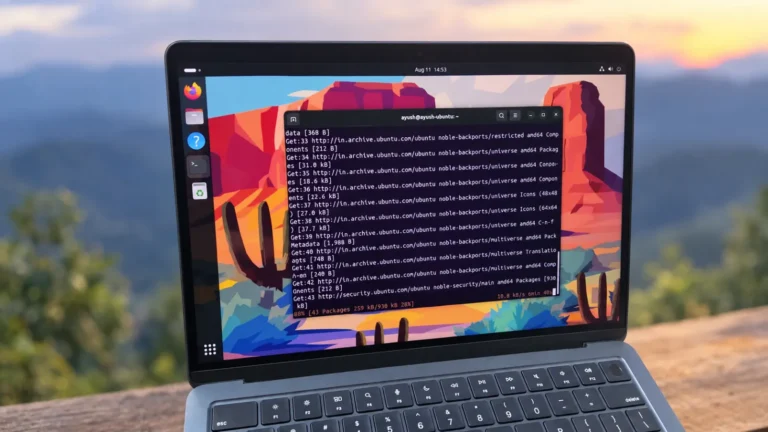
“No space left on device” (ENOSPC) usually means exactly what it says—the disk is full. But every so often you hit this error while df still shows plenty of free space, which is understandably confusing. This guide walks through the troubleshooting process and the less obvious root causes.
Table of Contents
The symptom
df -h shows the filesystem is only 85% used, with 7.3G free:
df -h
Filesystem      Size  Used Avail Use% Mounted on
/dev/sda3        56G   26G   27G  50% /
/dev/sda1        99M   25M   70M  26% /boot
/dev/sdx1        50G   40G  7.3G  85% /mountpoint
Yet copying a file into it fails:
cp /path/to/sourcefile.tar.gz /mountpoint/directory/
cp: overwrite '/mountpoint/directory/file.tar.gz'? y
cp: writing '/mountpoint/directory/file.tar.gz': No space left on device
There is free space, so something other than raw capacity is the problem. Work through the checks below.
Troubleshooting checklist
1. Check for inode exhaustion
A filesystem can run out of inodes (the metadata slots for files) long before it runs out of bytes—common when a directory holds millions of tiny files. Check with df -i:
df -i
Filesystem      Inodes  IUsed    IFree IUse% Mounted on
/dev/sda3     14942208 309407 14632801    3% /
/dev/sda1        26104     39    26065    1% /boot
/dev/sdx1      6553600    307  6553293    1% /mountpoint
In this case IUse% is only 1%, so inodes are not the problem either. On to the next check.
2. Check for deleted-but-still-open files
If a process holds a file open after it was deleted, the space isn’t reclaimed until the process closes it—so df counts space that no directory shows. List these files with:
lsof +L1
Restarting (or kill-ing) the offending process releases the space. If this lists nothing relevant, continue.
3. Check reserved blocks
ext2/3/4 filesystems reserve a percentage of space (5% by default) for root. A non-root write can fail with ENOSPC while df still shows that reserve as “free.” Inspect it with:
tune2fs -l /dev/sdx1 | grep -i 'reserved block'
4. Check for an oversized directory ← the root cause here
This is the culprit in our scenario. The target directory once held a very large number of files. ext3/ext4 directories grow to hold their entries but do not shrink when files are removed, leaving a large, sparsely used directory map full of holes. ext3 in particular has a limit on how many entries a single directory can hold, and once its directory index is exhausted, creating any new (sufficiently large) file returns ENOSPC.
See also: Mastering the Linux Command Line — Your Complete Free Training Guide
You can spot a bloated directory by its own size—a healthy directory is a few KB; a problem one can be many MB:
du -sh /mountpoint/directory
ls -ld /mountpoint/directory
14M     /mountpoint/directory
drwxr-xr-x 2 root root 14680064 Aug 30 09:12 /mountpoint/directory
A 14 MB directory entry with relatively few files inside is the tell-tale sign.
5. Check for mount-point shadowing
If the intended device isn’t actually mounted, you may be writing to the small underlying root filesystem instead. Confirm the mount is present:
mount | grep /mountpoint
findmnt /mountpoint
Root cause and fix for the oversized directory
The root cause is the unexpected directory size. The directory has many blocks allocated but few files in it. At one point it held a large number of files; when they were removed, holes were left in the directory map. Because the directory can’t be compacted in place and has hit its entry limit, new files can no longer be added—hence ENOSPC despite free disk space and free inodes.
The fix is to recreate the directory so it’s rebuilt compactly:
# Move the existing contents aside
mv /mountpoint/directory /mountpoint/directory.old

# Create a fresh, compact directory
mkdir /mountpoint/directory

# Copy the files you still need back in
rsync -a /mountpoint/directory.old/ /mountpoint/directory/

# Once verified, remove the old bloated directory
rm -rf /mountpoint/directory.old
The new directory starts small and can accept new files again. To keep it from recurring, avoid piling millions of files into a single directory—shard them into subdirectories instead.
For more on measuring where space actually goes, see 3 Ways to Find the Largest Files and Directories in Linux, and for the difference between the tools that report usage, see du vs df: Checking Disk Usage in Linux.
Summary
| Check | Command | What it rules out |
|---|---|---|
| Free bytes | df -h | Actual disk-full |
| Free inodes | df -i | Inode exhaustion |
| Deleted open files | lsof +L1 | Space held by a process |
| Reserved blocks | tune2fs -l DEV | grep -i reserved | Root reserve |
| Oversized directory | du -sh dir / ls -ld dir | Directory entry limit |
| Mount present | findmnt /mountpoint | Writing to the wrong filesystem |
When df says there’s space but writes still fail, the answer is almost always inodes, deleted-but-open files, reserved blocks, or—as here—a directory that grew too large to accept new entries.