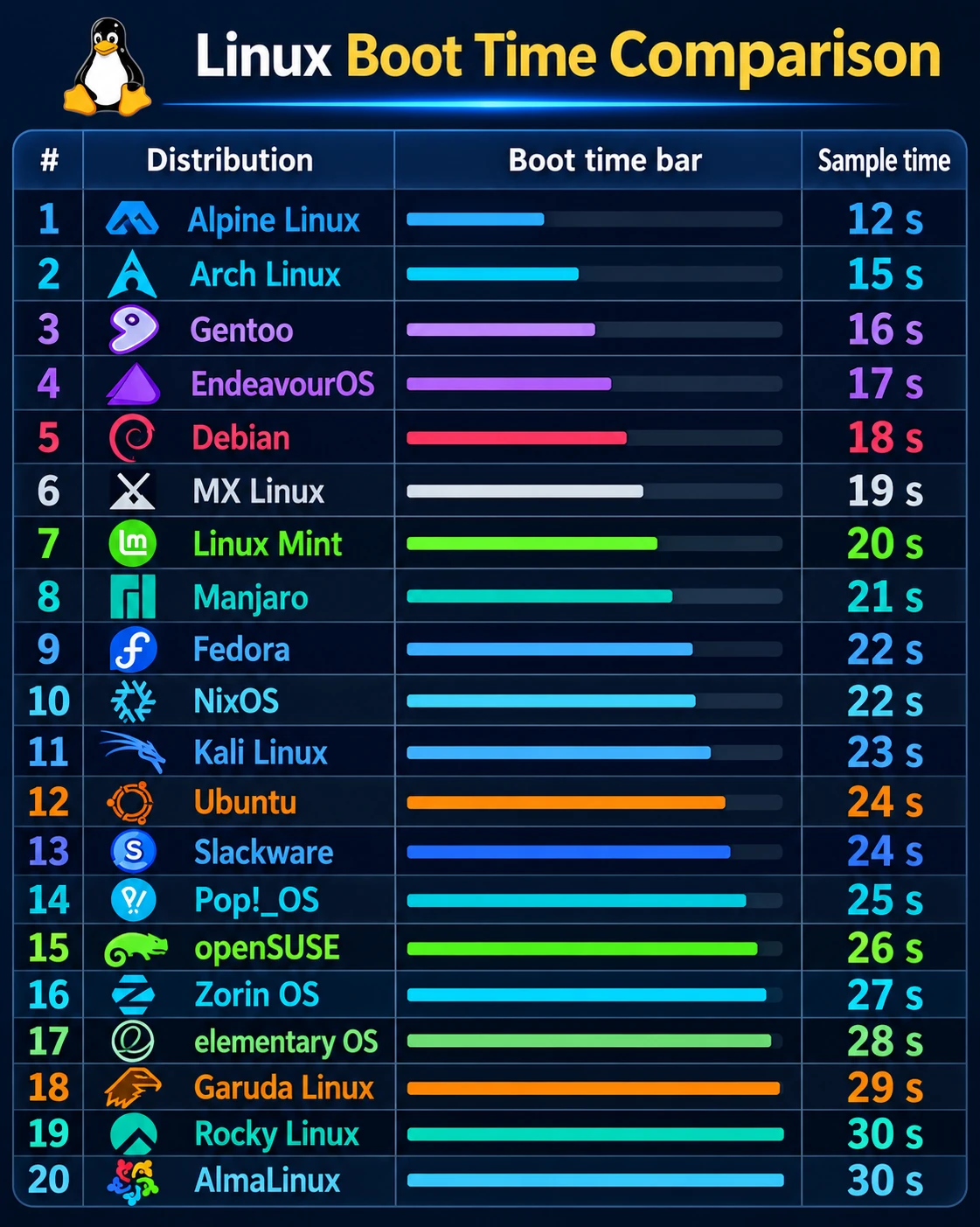
Charts like this one show up on social media all the time: twenty Linux distributions lined up by boot time, from Alpine Linux at 12 seconds down to Rocky Linux and AlmaLinux at 30 seconds.
It’s tempting to read it as “Alpine is fast, AlmaLinux is slow.” But look at the column header: “Sample time.” These are example numbers, not results from one controlled test. Boot time depends much more on your hardware and setup than on the distro’s name.
This guide explains why some distros tend to boot faster, what actually slows a boot down, and how to measure and improve boot time on your own machine. That last part is more useful than any chart.
Table of Contents
What “Boot Time” Actually Includes
When you press the power button, several stages run one after another:
- Firmware (BIOS/UEFI). The motherboard checks the hardware. Linux has no control over this part.
- Bootloader (usually GRUB). It shows the boot menu and loads the kernel.
- Kernel. Linux starts up and detects your hardware.
- initramfs. A small temporary system that finds and mounts your real disk.
- Userspace. The init system (usually systemd) starts services: networking, logging, the desktop, and so on.
A chart that says “22 seconds” rarely tells you which of these stages it measured. On many machines, the firmware alone takes 5–10 seconds, and that’s the same no matter which distro you install.
Why Some Distros Tend to Boot Faster
The order in the chart isn’t random, though. There are real reasons some distros usually come out ahead.
Alpine Linux is tiny by design. It uses lightweight components (musl, BusyBox) and the simple OpenRC init system instead of systemd. A fresh Alpine install starts very few services, so there’s almost nothing to wait for. That’s also why it’s so popular as a base for Docker containers.
Arch Linux, Gentoo, and EndeavourOS start with a minimal base. You only get the services you install yourself. A minimal system boots fast because it simply does less.
Debian and MX Linux keep their defaults lean. MX also uses sysVinit by default instead of systemd, and its startup is kept light.
Ubuntu, Pop!_OS, Zorin OS, and elementary OS are full desktop systems. They start more services out of the box, such as snap services, printing, Bluetooth, and a splash screen. Each one adds a little time.
Rocky Linux and AlmaLinux are built for enterprise servers. A typical install enables services like firewalld, tuned, and kdump (crash dump capture). They’re useful on a server, but they add time at boot. Servers usually reboot rarely, so a few extra seconds doesn’t matter much.
So the real pattern is simple: fewer services means a faster boot. The distro name matters less than what’s turned on.
Things That Matter More Than the Distro
If you want a faster boot, these usually matter more than which distro you choose:
- Your disk. Moving from a hard drive to an SSD can cut boot time a lot. An NVMe SSD is faster still.
- Firmware settings. Enabling “Fast Boot” in UEFI and turning off devices you don’t use can save several seconds before Linux even starts.
- The GRUB menu timeout. Many systems wait 5 seconds at the boot menu by default. That’s 5 seconds of nothing.
- Network waits. A service that waits for the network to be fully up before boot can continue is one of the most common causes of slow boots.
- Your desktop environment. A lightweight desktop like Xfce starts faster than a heavier one.
Measure Your Own Boot Time
On any distro that uses systemd, which includes most of this list, one command tells you exactly where the time goes:
systemd-analyze
Startup finished in 6.211s (firmware) + 2.004s (loader) + 1.842s (kernel) + 3.107s (initrd) + 8.330s (userspace) = 21.495s
graphical.target reached after 8.301s in userspace.
The breakdown matches the boot stages above. In this example, firmware and the bootloader take more than 8 seconds of the 21-second total before Linux has done anything.
To see which services take the longest:
systemd-analyze blame
5.012s NetworkManager-wait-online.service
1.874s plymouth-quit-wait.service
1.203s snapd.service
  842ms dev-nvme0n1p2.device
  611ms systemd-journal-flush.service
One thing to know: blame shows how long each service took, but services often run in parallel. A slow service that doesn’t block anything else may not actually delay your boot. To see what really held things up, use:
systemd-analyze critical-chain
This shows the chain of services that the boot actually had to wait for.
And if you want a picture of the whole boot timeline:
systemd-analyze plot > boot.svg
Open boot.svg in your browser to see every service as a bar on a timeline.
On distros that don’t use systemd by default, such as Alpine and Gentoo with OpenRC, Slackware, or MX Linux with sysVinit, systemd-analyze isn’t available. There, the simplest approach is to compare the system log timestamps with when your login screen appears.
Simple Ways to Speed Up Boot
1. Shorten the GRUB menu delay. Edit /etc/default/grub and set:
GRUB_TIMEOUT=1
Then rebuild the GRUB configuration. On Debian and Ubuntu:
sudo update-grub
On Fedora, Rocky Linux, and AlmaLinux:
sudo grub2-mkconfig -o /boot/grub2/grub.cfg
The output path for grub2-mkconfig can differ on some systems, for example on some UEFI installs. Check your distro’s documentation if you’re not sure.
2. Turn off services you don’t use. If you never print, for example:
sudo systemctl disable --now cups.service
Only disable services you understand. Turning off the wrong one can break networking or your desktop.
3. Check the network wait service. If NetworkManager-wait-online.service is near the top of blame, it’s waiting for the network before letting boot continue. On a laptop or desktop, you can often disable it safely:
sudo systemctl disable NetworkManager-wait-online.service
On servers, keep it enabled if any services need the network to be ready when they start, such as network file system mounts or databases that listen on a specific IP address.
4. Check the firmware. Look in your UEFI settings for “Fast Boot” and update the firmware if your vendor offers updates. If systemd-analyze shows the firmware stage taking 10 seconds or more, this is where to start.
The Bottom Line
The ranking in this chart reflects a real pattern: minimal distros like Alpine and Arch start fewer services, so they tend to boot faster than full desktop or enterprise systems like Ubuntu, Rocky Linux, and AlmaLinux.
But a difference of 12 versus 30 seconds won’t hold for every machine. Your disk, your firmware, and the services you enable matter far more than the distro’s name. Run systemd-analyze on your own system. In a minute, you’ll know exactly where your boot time goes and what’s worth fixing.