
You created a new Linux instance. It is up.
So, everything should be ready, right? Not always.
I learned this the hard way. I logged into a freshly provisioned production database server. And this was the first thing I saw:
[admin@rhel-9-hardened-base-v1 ~]$That was not the database hostname we assigned.
When I investigated further, things got even stranger. None of the tasks defined had been executed. The data volumes were not added, the swap file was nowhere to be found, and the machine had failed to join our identity domain.
Yet, our deployment pipeline reported zero errors. The VM was provisioned, an IP was assigned, and the instance was marked “Running.”
If you have ever stared at a cloud instance that quietly ignored your bootstrap script, you know how frustrating this silence can be.
By the end of this article, you will understand how cloud-init behaves when its network lifeline is cut, and the exact commands to diagnose first-boot failures without digging through thousands of log lines.
Table of Contents
The Clue in the Prompt
When an instance boots with an unexpected hostname, your first instinct might be to blame your bootstrap scripts or suspect a typo in your Terraform module.
In our case, the hostname rhel-9-hardened-base-v1 was a dead giveaway: the label generated weeks earlier during the image-baking pipeline.
See also: Mastering the Linux Command Line — Your Complete Linux Training Course
When a cloud instance boots for the first time, Linux reads whatever name was baked into /etc/hostname during image creation. It relies on cloud-init to query the cloud metadata service, receive your custom user-data, and overwrite that placeholder with your desired hostname.
If cloud-init succeeds, you never notice the placeholder. But if cloud-init encounters a fatal blocker early on, it fails silently, leaving behind the ghost of the image build.
The Culprit: A Silent 169.254.169.254
To see why cloud-init had abandoned its post, I ran the first command every cloud engineer should remember:
cloud-init status --longInstead of status: done, the console returned a diagnostic warning:
status: done
extended_status: degraded done
detail: DataSourceNone
errors: []
recoverable_errors:
ERROR:
  - Timed out, no response from urls: ['http://169.254.169.254/openstack']
WARNING:
  - No active metadata service found
  - Used fallback datasource
Notice detail: DataSourceNone.
Every cloud platform provides an internal HTTP endpoint at the link-local address 169.254.169.254 to serve instance metadata, network definitions, and the user-data payload.
On this particular network segment, an routing hiccup was dropping packets destined for 169.254.169.254.
Because cloud-init could not talk to the metadata service, it had no idea what hostname to set, what users to create, or what disks to format. Left in the dark, it fell back to DataSourceNone (an offline dummy datasource) and exited gracefully.
Inside init-local: The First 50 Seconds
cloud-init is a stage crew, not a script.
Picture a theater on opening night. One crew sets the stage. Another hangs the lights. The actors come on last.
cloud-init works the same way. It isn’t one big script. It’s four systemd services, each with its own job and its own list of modules.
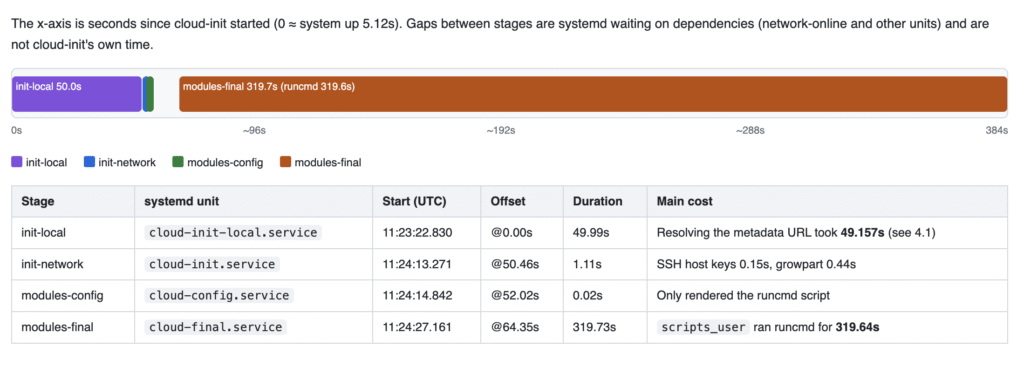
To appreciate why metadata connectivity is decisive, look at what cloud-init attempts during its very first stage: init-local.
Running via cloud-init-local.service before standard networking is active, init-local executes a strict sequence:
- Detection: It checks DMI hardware data. Seeing a new instance launch rather than a reboot, it invalidates cached state and loads
DataSourceOpenStackLocal. - Ephemeral DHCP: Since formal networking is down, cloud-init launches a temporary DHCP client on
eth0, acquires a lease, and injects a temporary route to169.254.169.254/32. - Retrieval: Over this temporary link, it downloads
meta_data.json,network_data.json, and theuser_datapayload. - Teardown: The moment the files are saved, cloud-init deletes the temporary routes, removes the temporary IP, and brings
eth0back down. - Early Configuration: It runs
hostnamectl set-hostnamewith the name from metadata, selects the OS renderer (sysconfig), and generates/etc/sysconfig/network-scripts/ifcfg-eth0withbringup=Falseso NetworkManager can initialize the link cleanly later.
When 169.254.169.254 is unreachable, this entire chain breaks at step two. The temporary DHCP client times out, retrieval fails, and step five never runs. The system remains stuck with the image template’s hostname.
The Clean Reset
Once our platform team restored connectivity to the metadata gateway, did we need to rebuild the VM from scratch?
Fortunately, no.
Cloud-init is stateful. Once it runs, it writes semaphore files under /var/lib/cloud/instance/ so subsequent reboots do not repeat initialization. A normal reboot simply sees those markers and skips execution.
To force cloud-init to evaluate the system as a brand-new instance, run:
sudo cloud-init clean --logs --rebootThis clears /var/lib/cloud/ markers, deletes old logs, and reboots the operating system immediately.
On reboot, init-local succeeded, reached 169.254.169.254, picked up the metadata payload, and renamed the machine to its production hostname. The disks mounted, swap initialized, and the server joined the fleet.
The First-Boot Diagnostic Triage
When a newly provisioned VM behaves unexpectedly, run these three diagnostic commands:
- Check Health & Datasource:
cloud-init status --longIf you see DataSourceNone, your instance cannot reach metadata. If you see your platform’s datasource (such as DataSourceOpenStackLocal), cloud connectivity succeeded.
- Inspect Stage Timings:
sudo cloud-init analyze showThis prints an execution tree showing how many seconds each module took across all four stages.
- Validate Schema:
sudo cloud-init schema --systemCloud-init validates your YAML against its internal schema, catching unsupported syntax early.
What’s Next?
Restoring metadata connectivity fixed our server. But looking at the output of cloud-init analyze show opened up a deeper puzzle:
Why did our custom shell commands wait hundreds of seconds before finally executing in a stage called modules-final? And how do cloud-init and NetworkManager hand off network control without stepping on each other?
In Part 2, we will break down cloud-init’s four-stage lifecycle architecture and see why it functions like a staged theater production rather than a simple shell script.
Have you ever had an instance silently skip initialization? What did your datasource turn out to be? Share your experiences in the comments below.