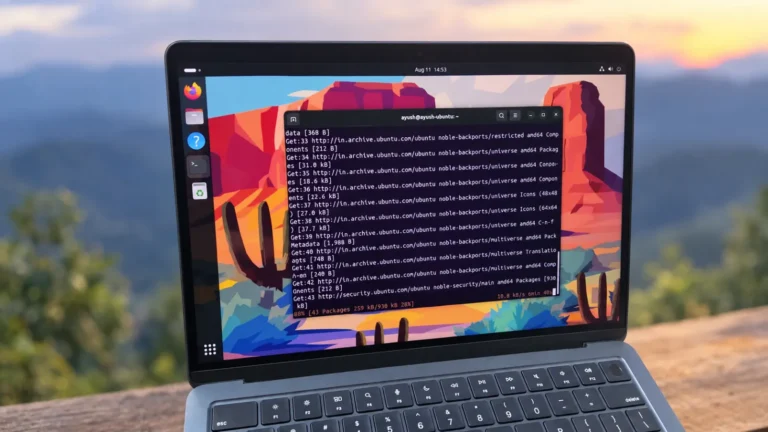

You’re in the middle of something, you glance away for a few minutes, and when you return your shell has kicked you out with this message:
timed out waiting for input: auto-logoutUnlike an SSH “broken pipe,” this one isn’t a network problem — it’s your shell doing exactly what it was told. A timeout was configured to automatically log out idle sessions, and yours crossed the threshold. This is often set intentionally for security or compliance, but it can be maddening on a machine where you don’t need it.
This guide explains what causes the auto-logout, how to fix it (temporarily or permanently), and — importantly — how to do it correctly on systems where the timeout is enforced for a reason.
Table of Contents
What Causes This Message?
The auto-logout message comes from the shell’s TMOUT environment variable. TMOUT sets the number of seconds a shell will wait for input before it automatically terminates the session. It’s supported by Bash, ksh, and (via a different mechanism) other shells.
For example, if TMOUT is set to 300, your shell exits after 5 minutes of inactivity:
echo $TMOUT
# 300
The specific wording — “timed out waiting for input: auto-logout” — is the message printed by the C shell (csh/tcsh) using its autologout variable, which does the same thing as TMOUT in Bash. Either way, the cause is identical: an idle-timeout setting closed your session.
💡 System administrators frequently deploy this via CIS security benchmarks, which recommend an idle session timeout. So on hardened or corporate systems, it’s there on purpose.
Step 1: Confirm the Timeout Is Set
First, check the relevant variable for your shell.
Bash / ksh:
echo $TMOUT
# e.g. 300
tcsh / csh:
See also: Mastering the Linux Command Line — Your Complete Free Training Guide
echo $autologout
# e.g. 5   (minutes, not seconds)
If the value is non-zero, that’s your culprit. Next, find where it’s being set, because that determines how to change it permanently.
Step 2: Find Where TMOUT Is Defined
The variable is usually set in one of the system-wide or user shell startup files. Search for it:
sudo grep -rn "TMOUT" /etc/profile /etc/profile.d/ /etc/bashrc /etc/bash.bashrc 2>/dev/nullFor csh/tcsh systems, search for autologout:
sudo grep -rn "autologout" /etc/csh.cshrc /etc/csh.login 2>/dev/nullYou’ll typically find something like this in /etc/profile.d/tmout.sh or profile:
TMOUT=300
readonly TMOUT
export TMOUT
The readonly TMOUT line is important — it means the value is locked and can’t simply be overridden in your session (more on that below).
Step 3: Fix It for Your Session (Temporary)
If TMOUT is not marked readonly, you can disable it immediately for your current session by setting it to 0:
export TMOUT=0Setting TMOUT=0 disables the idle timeout entirely. This lasts only for your current shell and is the quickest way to stop being logged out while you work.
For tcsh/csh:
unset autologout⚠️ If you get an error like
TMOUT: readonly variable, the administrator has locked it — skip to Step 5 for how to handle that properly.
Step 4: Fix It Permanently for Your User
To make the change stick across logins for just your account, add it to your personal shell startup file.
For Bash, edit ~/.bashrc (and ~/.bash_profile for login shells):
echo 'export TMOUT=0' >> ~/.bashrcThen reload it:
source ~/.bashrcFor tcsh/csh, edit ~/.tcshrc or ~/.cshrc:
echo 'unset autologout' >> ~/.tcshrc⚠️ Caveat: This only works if the system-wide
TMOUTis notreadonly. If it is locked (Step 2 showedreadonly TMOUT), your personal setting will be overridden or will error out — see the next section.
Step 5: Fix It System-Wide (When TMOUT Is readonly)
When TMOUT is set as readonly in a global file, individual users cannot override it. To change it, you need root access and must edit the source file directly.
First, locate the file (from Step 2), for example /etc/profile.d/tmout.sh. Then either:
Option A: Increase the timeout
If the goal is compliance but the current value is too aggressive, raise it rather than removing it:
sudo nano /etc/profile.d/tmout.sh# Change from 300 to, say, 1800 (30 minutes)
TMOUT=1800
readonly TMOUT
export TMOUTOption B: Disable it entirely
If the timeout isn’t required on this machine, comment it out or set it to 0:
# TMOUT=300
# readonly TMOUT
# export TMOUT
The change takes effect on the next login (startup files run at login), so log out and back in to confirm.
⚠️ Important: On a system where the timeout was set for security or compliance reasons (CIS benchmarks, corporate policy, PCI-DSS, etc.), do not disable it without authorization. Instead, discuss increasing the value with whoever owns the policy. Removing a required control can put the system out of compliance.
Which Fix Should You Use?
| Situation | Fix |
|---|---|
TMOUT not readonly, your machine | export TMOUT=0 in ~/.bashrc |
TMOUT readonly, you have root | Edit the global file (Step 5) |
| Timeout required for compliance | Increase the value, don’t disable |
| tcsh/csh shell | unset autologout |
Bonus: Keeping a Session Alive Without Disabling the Timeout
If you’re not allowed to change TMOUT but need a long-running task to survive, don’t fight the policy — run the work in a way that doesn’t depend on your interactive shell:
- Use
tmuxorscreen. Your task runs in a detached session on the server and keeps going even if your login shell times out:
  tmux
  # run your task, then detach with Ctrl-b d
  # reconnect later:
tmux attach- Run jobs with
nohupor as a background service so they aren’t tied to your terminal:
nohup ./long_task.sh &These approaches respect the security timeout while still protecting your work — the best of both worlds.
Conclusion
The timed out waiting for input: auto-logout message is a shell idle-timeout, controlled by the TMOUT variable in Bash/ksh (or autologout in tcsh/csh) — not a network glitch. To fix it:
- Check it:
echo $TMOUT. - Find it: grep profile,
/etc/profile.d/, and~/.bashrc. - Disable it for you:
export TMOUT=0(if not readonly). - Change it globally: edit the source file as root — but increase rather than remove it when it exists for compliance.
And whenever the timeout is mandated, use tmux, screen, or nohup to keep long jobs running instead of disabling the control. That way you stay productive and compliant.